Call CA Tally HelpDesk
+91 9205471661,
7428779101
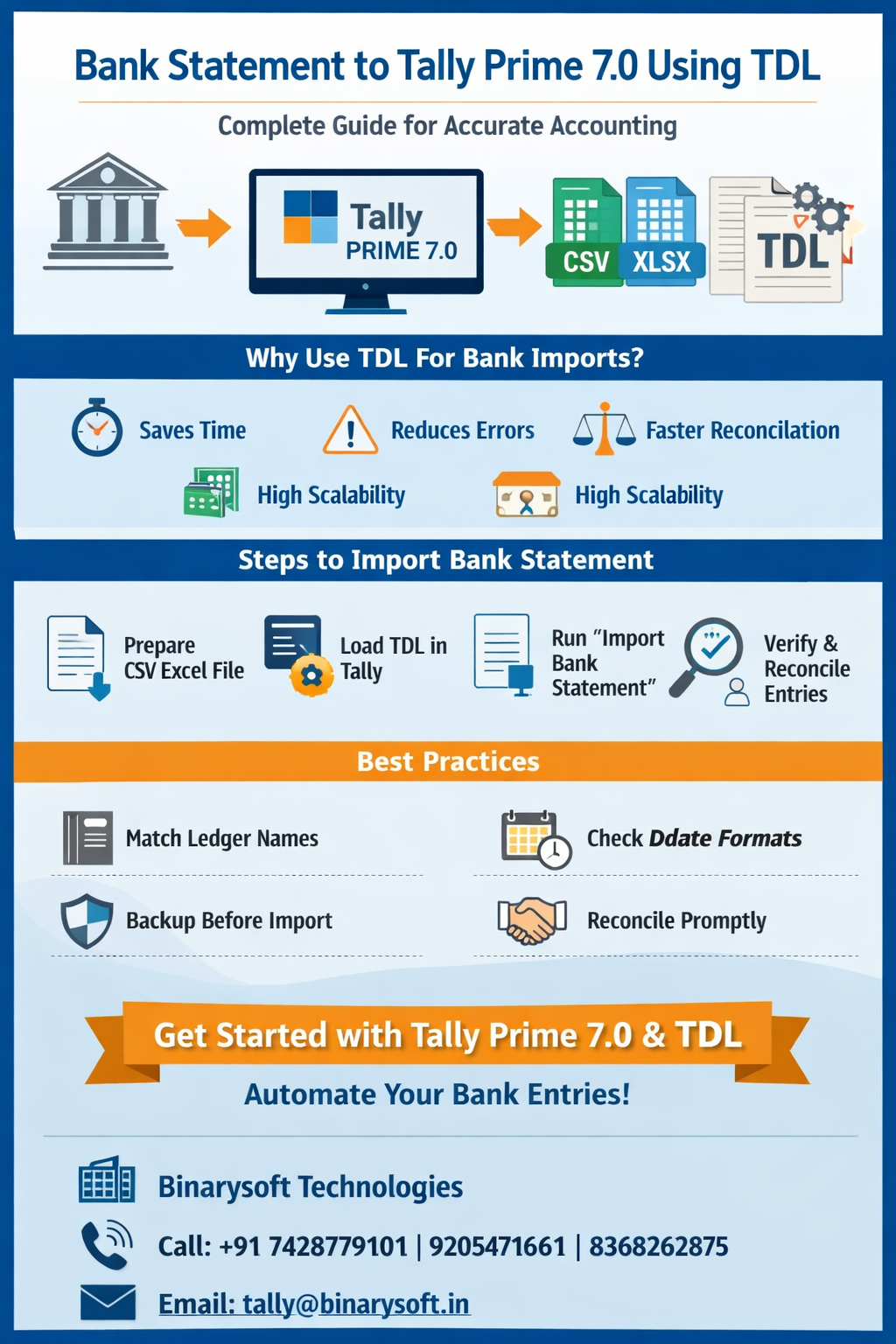
Managing bank transactions is a critical task for every business. Ensuring that transactions recorded in accounting software match the bank statement is essential for accurate reporting, timely reconciliation, and error-free financial records.
While manual entry is slow and prone to mistakes, using TDL (Tally Definition Language) in Tally Prime 7.0 automates bank statement imports, saving time and improving accuracy. This guide explains how to import bank statements to Tally Prime 7.0 using TDL step by step, along with best practices and common pitfalls to avoid.
What Is Bank Statement to Tally TDL Conversion?
TDL (Tally Definition Language) is a powerful tool in Tally Prime that allows automation and customization. Bank statement to TDL conversion is the process of converting bank transaction data (usually in CSV or Excel format) into TDL-compatible entries so that Tally automatically creates vouchers like:
- Bank Receipts
- Bank Payments
- NEFT / RTGS / IMPS transactions
- Cheque payments
- Bank charges and interest entries
With this method, there is no need for manual voucher entry, which saves time and ensures accurate accounting.
Why Businesses Prefer Using TDL for Bank Imports
- Time-Saving – Manual entry for hundreds of transactions is time-consuming. TDL imports all transactions automatically.
- Error Reduction – Avoid typing errors, wrong amounts, or skipped entries.
- Faster Bank Reconciliation – Once imported, reconciliation becomes straightforward.
- Scalable – Perfect for businesses with high transaction volumes or multiple bank accounts.
- Audit-Ready – Ensures consistent and complete accounting records.
Supported Bank Statement Formats
TDL-based bank import usually works with:
- CSV (.csv) – Most common and easy to map in TDL
- Excel (.xls / .xlsx) – Easy to clean and organize
- PDF – Not recommended as TDL cannot read PDF directly
Best practice: Always use CSV or Excel for smooth TDL processing.
Prerequisites Before TDL Import
Before importing bank statements into Tally using TDL:
- Bank Ledger Exists – The ledger name in Tally should exactly match the bank account name in the file.
- Party Ledger (Optional) – If party-wise mapping is required.
- Correct Accounting Period – Voucher dates should fall within the active financial year.
- Backup of Tally Data – Always create a backup before any import.
Step-by-Step Process: Bank Statement to Tally TDL
Step 1: Prepare Bank Statement
- Download the statement from your bank portal in CSV or Excel.
- Include:
- Transaction Date
- Narration / Description
- Debit Amount
- Credit Amount
- Balance (optional)
Tip: Remove blank rows, avoid merged cells, and maintain consistent date formats.
Step 2: Create or Use a TDL Script
A TDL script reads the bank statement and automatically creates vouchers in Tally Prime.
Sample TDL Logic:
[System: UDF]
CSVFilePath : String : "C:\\BankStatement.csv"
[Function: Import Bank Statement]
Parameter: CSVFilePath : String
01 : SET FileName : ##CSVFilePath
02 : READ FILE : ##FileName
03 : FOREACH Line
04 : SPLIT : , : ##Fields
05 : CREATE VOUCHER : ##BankVoucher
06 : SET DATE : $$StringToDate:##Fields[1]
07 : SET PARTYLEDGERNAME : "Bank Ledger"
08 : IF ##Fields[4] = "Dr" THEN
09 : SET AMOUNT : ##Fields[3]
10 : SET ISDEEMEDPOSITIVE : Yes
11 : ELSE
12 : SET AMOUNT : ##Fields[3]
13 : SET ISDEEMEDPOSITIVE : No
14 : ENDIF
15 : SET NARRATION : ##Fields[2]
16 : END CREATE
17 : NEXT
Key Points:
- ISDEEMEDPOSITIVE differentiates Debit / Credit.
- Narration is automatically mapped from bank statement description.
- Vouchers are generated without manual intervention.
Step 3: Load TDL in Tally Prime 7.0
- Open Tally Prime 7.0.
- Go to F12 > Product & Features > Manage Local TDLs.
- Load your .tdl file.
- Run the Import Bank Statement function and provide the CSV/Excel path.
Step 4: Verify Imported Transactions
- Go to Display > Day Book.
- Check all vouchers for:
- Correct dates
- Correct debit and credit amounts
- Accurate narration
- Make corrections if any mismatched ledger names or amounts appear.
Step 5: Reconcile Bank Ledger
- Go to Bank Reconciliation Statement in Tally Prime.
- Match imported transactions with bank statements.
- Identify and clear unmatched entries.
Common Mistakes to Avoid
- Ledger Name Mismatch – The bank ledger name must match exactly.
- Incorrect Date Format – Use consistent DD-MM-YYYY format.
- Duplicate Imports – Avoid importing the same file twice.
- Ignoring Exceptions – Always check Tally’s exception report after import.
Advantages of TDL-Based Bank Import Over Manual Entry
|
Aspect
|
Manual Entry
|
TDL Import
|
|
Time Required
|
High
|
Low
|
|
Accuracy
|
Medium
|
High
|
|
Scalability
|
Limited
|
Excellent
|
|
Bank Reconciliation
|
Slow
|
Fast
|
|
Audit Readiness
|
Medium
|
High
|
Best Practices
- Maintain consistent bank ledger names.
- Import monthly or period-wise to avoid large data errors.
- Verify CSV/Excel files before import.
- Keep backups of Tally data.
- Reconcile immediately after importing.
Who Should Use TDL Bank Import
- Chartered Accountants and CA firms
- Accounting service providers
- MSMEs and small businesses
- Businesses with multiple bank accounts and high transaction volumes
Conclusion
Using TDL in Tally Prime 7.0 for bank statement imports ensures accurate accounting, reduces manual effort, speeds up reconciliation, and prepares data for audits efficiently. With proper preparation, clean statements, and careful TDL mapping, businesses can automate their bank accounting workflow and focus on strategic financial management.
Frequently Asked Questions
What is TDL in Tally Prime 7.0?
TDL (Tally Definition Language) is a scripting language used to customize, automate, and extend Tally Prime features, including automating bank statement imports.
Can all banks’ statements be imported using TDL?
Yes, as long as the bank statement is in CSV or Excel format. PDF statements need conversion to CSV/Excel first.
Does importing a bank statement via TDL affect existing vouchers?
No. TDL import only creates new vouchers and does not alter existing entries.
How does TDL differentiate between debit and credit transactions?
TDL uses the ISDEEMEDPOSITIVE field: Yes → Debit / Payment No → Credit / Receipt
CA. Harshit Gaurwaadi is a practicing Chartered Accountant with hands-on experience in accounting systems, GST compliance, and MSME advisory. He regularly works with small and mid-sized businesses to streamline inventory, billing, and statutory processes using modern accounting software. His articles focus on practical, ground-level challenges faced by Indian traders and professionals.