Call CA Tally HelpDesk
+91 9205471661,
7428779101
Tally Prime is one of the most trusted accounting and business management software used by thousands of companies across India. It helps track everything from sales, purchases, and inventory to tax and financial performance. One of the most important aspects for any business owner or accountant is monitoring business revenue — that is, the total income earned from operations during a specific period.
In Tally Prime, checking business revenue is simple and highly flexible. You can view it through built-in reports, such as the Profit and Loss Account, Sales Register, and Ledger Reports, or even customize the data to suit your needs. This article provides a complete, step-by-step explanation of how to view and analyze business revenue in Tally Prime.
1. Understanding Business Revenue in Tally Prime
In accounting terms, business revenue refers to the total income earned by selling goods or providing services before deducting expenses. In Tally Prime, all revenue-related data is recorded through Sales Vouchers, Credit Notes, and other income-related entries.
When you enter your daily sales transactions correctly, Tally automatically updates your revenue figures and financial reports in real time. You can then view this information in different forms — monthly summaries, customer-wise revenue, or item-wise performance — depending on your business type.
2. Using the Profit and Loss Account to Check Revenue
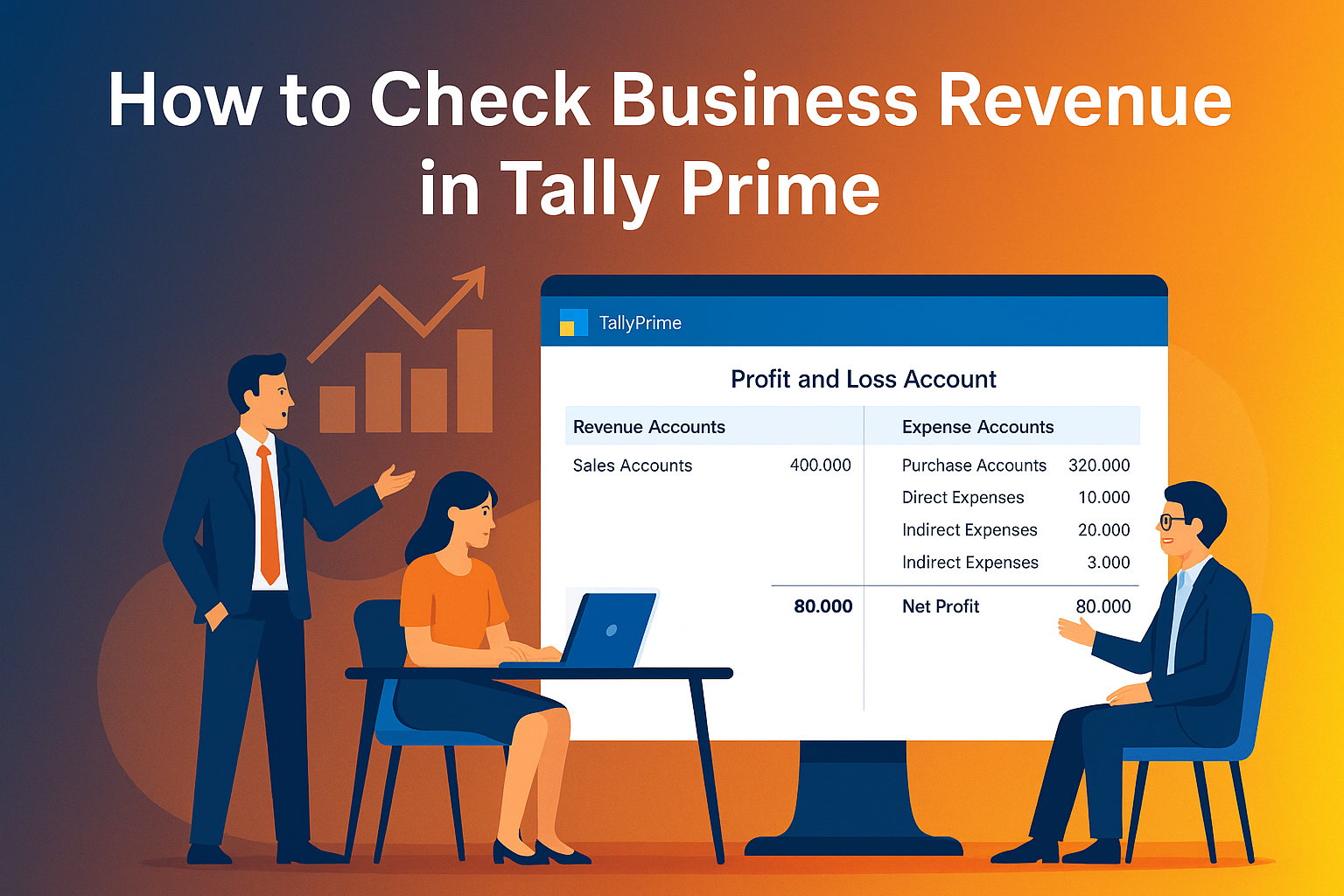
The Profit and Loss Account is the most comprehensive way to check your total business revenue in Tally Prime. Here’s how to do it:
- Open your company in Tally Prime.
- From the Gateway of Tally, go to Reports → Profit & Loss Account.
- By default, Tally will display the profit and loss statement for the current financial year.
- On the left side of the screen, you’ll see “Revenue Accounts” — this includes all income from sales and services.
- On the right side, you’ll see “Expense Accounts”, which represent purchases, operating costs, and other expenses.
The total under the “Income” or “Revenue” column represents your gross revenue for the selected period. You can press Alt+F2 to change the date range if you want to view revenue for a specific month, quarter, or year.
3. Checking Business Revenue Through the Sales Register
The Sales Register is another simple and effective way to view revenue details.
- Go to Gateway of Tally → Display More Reports → Account Books → Sales Register.
- Here, Tally shows a list of all sales vouchers created within the selected period.
- At the bottom of the screen, you’ll see the Total Sales Value, which represents your total revenue from sales.
- You can drill down into any entry by pressing Enter to see details like date, customer, and amount.
This method helps you track your day-wise, month-wise, or customer-wise revenue without looking at the full Profit and Loss Account.
4. Viewing Revenue by Customer, Product, or Region
If your business wants to analyze performance across different customers, items, or regions, Tally Prime provides several built-in reports:
- Customer-wise Revenue:
Go to Display → Statements of Accounts → Sales Analysis → Party-wise Sales.
This report shows how much revenue each customer contributed during the selected period.
- Item-wise Revenue:
Go to Display → Statements of Accounts → Inventory Reports → Item-wise Sales.
This report helps you identify your top-selling products or services.
- Region-wise or Branch-wise Revenue:
If you use cost centers or locations, you can go to Display → Statements of Accounts → Cost Center Summary to check which branch or department generated the most revenue.
These analytical reports are powerful tools that help business owners make data-driven decisions.
5. Using the Day Book and Statistics Reports
The Day Book and Statistics Reports also provide quick snapshots of your business activity and revenue trends.
- Day Book: Shows all transactions (including sales and receipts) on a daily basis.
- Statistics: Summarizes total vouchers created in a given period, including sales revenue and other incomes.
To access these:
- Go to Display More Reports → Day Book or Display → Statements of Accounts → Statistics.
- Filter by date or voucher type to see the total revenue figures for a particular time frame.
6. Exporting Revenue Reports
Tally Prime also allows you to export your revenue data for presentations or analysis in Excel or PDF format.
Simply open any report — such as Profit & Loss or Sales Register — and press Alt+E. Choose the format (Excel, PDF, or HTML) and save the report. This helps when you want to share revenue performance with management, clients, or auditors.
7. Conclusion
Tracking business revenue in Tally Prime is easy once your transactions are recorded correctly. From the Profit and Loss Account for total income to detailed sales analysis reports for deeper insights, Tally provides every tool a business owner needs to understand their financial performance.
By regularly reviewing your revenue reports, you can monitor sales trends, identify high-performing products, and make informed decisions for growth. Whether you’re a small trader, service provider, or manufacturing firm, Tally Prime remains the simplest and most reliable way to keep your business revenue transparent, accurate, and up to date.
Powered by Binarysoft Technologies
Authorized Tally Partner
Location : 1626/33, 1st Floor, Naiwala, Karol Bagh, New Delhi – 110005, INDIA
Contact us : +91 7428779101, 9205471661
Email us : tally@binarysoft.com (10:00 AM – 6:00 PM, Mon–Fri)
CA. T.R Venkat is a Chartered Accountant with extensive experience in accounting systems, GST compliance, and MSME advisory. He has worked closely with Indian traders and businesses on inventory control and accounting process improvement. His writing draws from real operational challenges faced by growing enterprises.