Call CA Tally HelpDesk
+91 9205471661,
7428779101
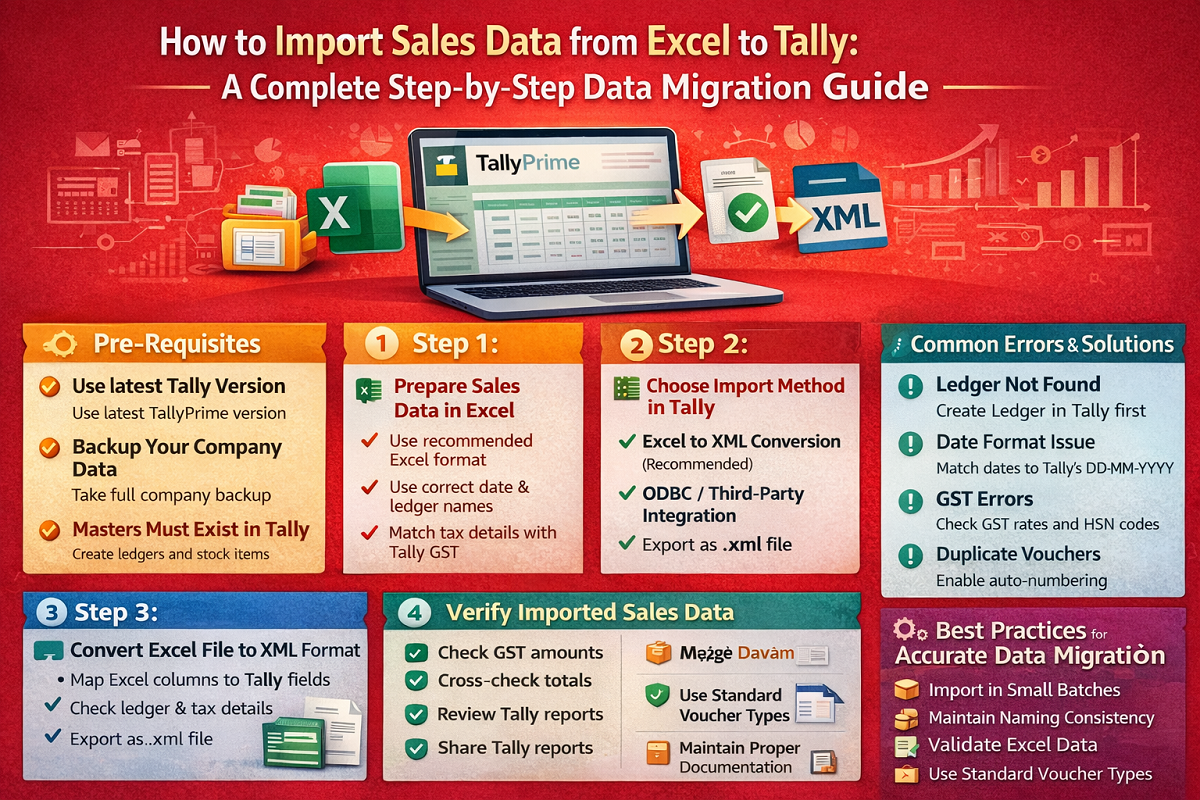
Importing sales data from Excel to Tally is a common requirement for businesses migrating from manual records, legacy software, or bulk sales data management. When done correctly, it saves time, reduces errors, and ensures accurate accounting and GST compliance. However, improper formats or missing details can lead to failed imports or incorrect financial records.
This guide explains everything you need to know—from preparation and Excel formatting to import methods, validation, and best practices—for smooth and error-free sales data migration into Tally.
Why Import Sales Data from Excel to Tally?
Businesses often maintain sales records in Excel due to its flexibility. However, as transaction volume grows, Excel becomes inefficient for accounting, taxation, and reporting. Importing sales data into Tally offers several advantages:
-
Centralized accounting system
-
Automated GST calculation and reporting
-
Accurate ledger and inventory updates
-
Faster financial reporting and audits
-
Reduced manual data entry errors
Pre-Requisites Before Importing Data
Before starting the import process, ensure the following:
1. Updated Tally Version
Use the latest version of TallyPrime, as it supports improved import features, GST validations, and error handling.
2. Backup Your Company Data
Always take a full backup of your Tally company before importing data to avoid data loss.
3. Masters Must Exist in Tally
Ensure the following masters are already created in Tally:
-
Customer (Party) Ledgers
-
Sales Ledger
-
GST Ledgers (CGST, SGST, IGST)
-
Stock Items and Units (if inventory is used)
If masters are missing, Tally may reject the import or create incorrect entries.
Step 1: Prepare Sales Data in Excel
Proper Excel formatting is the most important step for successful import.
Recommended Excel Columns for Sales Import
Your Excel sheet should include columns such as:
Ensure:
-
Column names match Tally fields
-
Dates are in correct format (DD-MM-YYYY)
-
Ledger and item names exactly match Tally masters
Step 2: Choose Import Method in Tally
Tally supports two main import methods for Excel sales data:
Method 1: Excel to XML Conversion (Recommended)
Tally imports data through XML format, so Excel data must be converted into XML using:
This method is best for bulk and recurring imports.
Method 2: ODBC / Third-Party Integration
Advanced users can use ODBC or accounting automation tools to sync Excel data directly with Tally.
Step 3: Convert Excel File to XML Format
If using Excel-to-XML import:
-
Map Excel columns with Tally fields
-
Define voucher type as Sales
-
Assign ledger and GST details correctly
-
Validate data before export
Save the file as .xml format.
Step 4: Import Sales Data into Tally
Follow these steps in TallyPrime:
-
Open TallyPrime
-
Select the company
-
Press Alt + O (Import)
-
Choose Masters or Vouchers
-
Select Vouchers
-
Choose XML as file format
-
Browse and select the XML file
-
Click Import
Tally will display:
Step 5: Verify Imported Sales Data
After import, verification is critical.
Check the Following:
-
Sales vouchers are created correctly
-
Party ledger balances match Excel data
-
GST amounts are calculated correctly
-
Stock quantities updated properly
-
Invoice totals are accurate
Use reports such as:
-
Day Book
-
Sales Register
-
GST Returns Report
-
Stock Summary
Common Errors During Import and Solutions
1. Ledger Does Not Exist
Solution: Create missing ledger in Tally before importing.
2. Incorrect Date Format
Solution: Ensure Excel dates match Tally’s date format.
3. GST Classification Errors
Solution: Verify GST rates, HSN codes, and ledger GST settings.
4. Duplicate Voucher Numbers
Solution: Enable auto-numbering or correct voucher numbers in Excel.
5. Stock Item Not Found
Solution: Create stock items with the exact same name in Tally.
Best Practices for Accurate Data Migration
1. Import in Small Batches
Avoid importing very large files at once. Test with small datasets first.
2. Maintain Naming Consistency
Ledger, item, and GST names must exactly match Tally masters.
3. Validate Excel Data
Check for blank cells, incorrect totals, and mismatched GST values.
4. Use Standard Voucher Types
Always use standard Tally voucher types like Sales, Credit Note, or Debit Note.
5. Maintain Proper Documentation
Keep a record of import files, mappings, and logs for audit and troubleshooting.
Benefits of Excel to Tally Sales Import
-
Saves hours of manual data entry
-
Improves accounting accuracy
-
Ensures GST compliance
-
Enables faster financial reporting
-
Supports business scalability
Who Should Use Excel to Tally Sales Import?
This process is ideal for:
-
MSMEs migrating to Tally
-
Businesses handling bulk invoices
-
Accountants and consultants
-
Retailers and wholesalers
-
GST-registered businesses
Conclusion
Importing sales data from Excel to Tally is a powerful way to streamline accounting operations when done correctly. With proper Excel preparation, correct master creation, and systematic validation, businesses can migrate large volumes of sales data quickly and accurately.
By following this step-by-step guide, you can ensure error-free data migration, accurate GST reporting, and reliable financial records in Tally.
Accurate Excel to Tally sales import depends on clean data, correct masters, and systematic validation—test small, verify thoroughly, and scale confidently.
Powered by Binarysoft Technologies
Authorized Tally Partner
Location:
1626/33, 1st Floor, Naiwalan, Karol Bagh, New Delhi – 110005, INDIA
Contact Us:
+91 7428779101
+91 9205471661
+91 8368262875
Email:
tally@binarysoft.com
Business Hours:
10:00 AM – 6:00 PM (Mon–Fri)
Frequently Asked Questions
Can sales data be directly imported from Excel to Tally?
No, Tally does not directly import Excel (.xlsx) files. Sales data must first be converted into XML format or imported using a compatible third-party Excel-to-Tally import tool.
Which Tally version supports Excel to sales data import?
Latest versions of TallyPrime support sales voucher import through XML. Using the updated version ensures better GST validation and fewer import errors.
Latest versions of TallyPrime support sales voucher import through XML. Using the updated version ensures better GST validation and fewer import errors.
Latest versions of TallyPrime support sales voucher import through XML. Using the updated version ensures better GST validation and fewer import errors.
CA. Harshit Gaurwaadi is a practicing Chartered Accountant with hands-on experience in accounting systems, GST compliance, and MSME advisory. He regularly works with small and mid-sized businesses to streamline inventory, billing, and statutory processes using modern accounting software. His articles focus on practical, ground-level challenges faced by Indian traders and professionals.