Call CA Tally HelpDesk
+91 9205471661,
7428779101
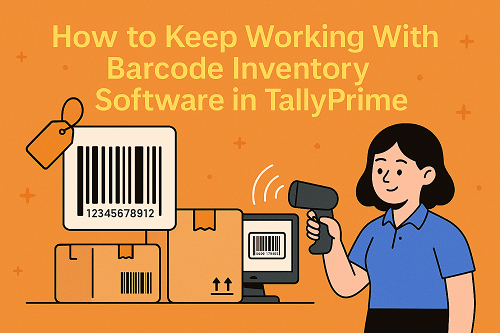
Barcode-based inventory management has become essential for businesses that deal with multiple stock items, product variations, and fast billing. TallyPrime supports barcode functionality, allowing businesses to manage stock quickly, eliminate manual errors, and improve accuracy in billing and reporting.
This complete guide explains how barcode inventory works in TallyPrime, how to set it up step-by-step, and how different business types can use it to simplify operations.
1. What is Barcode Inventory in TallyPrime?
Barcode inventory in Tally means assigning a unique barcode to each product so the system can automatically identify:
- Item name
- Stock category
- Batch or lot
- MRP or selling price
- GST details
- Expiry or manufacturing date
- Quantity
By scanning the barcode, TallyPrime automatically fills the product details in the purchase or sales voucher. This eliminates manual entry, reduces mistakes, and speeds up billing.
2. Why Businesses Use Barcode Inventory in TallyPrime
Barcode-based inventory benefits a wide range of businesses:
- Retail shops
- Garment stores
- Electronics shops
- Supermarkets
- Warehouses
- FMCG distributors
- Pharma & cosmetic stores
- E-commerce sellers
- Manufacturing units
Using barcodes helps businesses:
- Maintain accurate stock levels
- Speed up billing at counters
- Track product movement
- Identify slow-moving and fast-moving stock
- Reduce human error
- Avoid duplicate products
- Improve overall store management
3. Requirements for Using Barcode Inventory in TallyPrime
To implement barcode inventory in Tally, you need:
- TallyPrime (latest release)
- A barcode generator (software or online tool)
- A barcode scanner (USB wired or wireless)
- Barcode labels & printer (inkjet, thermal, or sticker printer)
- Correct item-wise stock configuration in Tally
Tally does not generate barcode images itself, but it supports storing and scanning barcode numbers.
4. How to Set Up Barcode Inventory in TallyPrime (Step-by-Step)
Below is the complete configuration guide.
4.1 Enable Barcode Feature
- Go to Gateway of Tally → F11 (Features).
- Enable Inventory Features.
- Turn ON the following settings:
- Use Barcodes
- Use Batches (optional)
- Use GST
- Maintain Multiple Units (if needed)
- Save settings.
4.2 Create Barcode Field in Stock Items
- Go to Gateway of Tally → Create → Stock Item
- Enter:
- Item Name
- Units (Nos., Pcs., Kgs., etc.)
- Category and group
- Enable Set/Alter Barcode
- Enter a unique barcode number
- Example: 8901234500012
- You may use EAN-13, Code-128, or QR codes
- Save the item.
Tip:
Barcode number must be unique for each different product or variation.
4.3 Import or Generate Barcodes in Bulk
If you have many products:
- Use Excel to prepare barcode lists
- Import them into Tally using TDL or add-ons
- Or use any barcode generator software to create sticker images
Tally stores barcode numbers, not the actual barcode image.
4.4 Print Barcode Labels from External Software
Most businesses print barcodes using:
- TSC or Zebra thermal printers
- Online barcode generator
- Retail POS software
You simply use the same barcode number inside Tally.
5. How to Use Barcode in Daily Transactions in TallyPrime
Once your barcode setup is ready, you can use it for:
- Purchase entry
- Sales billing
- Stock transfers
- Physical stock verification
Here’s how.
5.1 Purchase Entry with Barcode
When items arrive from supplier:
- Go to F9: Purchase
- Scan the barcode
- Tally automatically picks:
- Item name
- Unit
- Rate (if pre-set)
- GST category
- Enter quantity
- Save voucher
Purchase stock updates instantly.
5.2 Sales Entry with Barcode
At the counter:
- Go to F8: Sales
- Scan the product barcode
- Tally auto-fills the item
- Enter quantity
- Complete customer details (if required)
- Save the invoice
This ensures fast billing with zero typing errors.
5.3 Stock Transfer Using Barcode
For warehouse and store movement:
- Go to Inventory Vouchers → Stock Journal
- Scan barcodes of items being moved
- Enter source and destination
- Save the entry
Warehouse stock becomes accurate and traceable.
6. How to Track Barcode-Based Inventory in TallyPrime
Barcode-enabled inventory helps track:
- Available stock
- Batch/lot details
- MRP-wise sales
- Category-wise movement
- Expiry stock
- Vendor-wise purchases
Useful reports inside TallyPrime include:
- Stock Summary
- Item-wise Profit
- Movement Analysis
- Batch Register
- Sales Register
- Purchase Register
These reports help businesses make decisions based on real-time stock data.
7. Tips for Maintaining Barcode Accuracy
To ensure smooth operations:
- Always print clear, scannable barcodes
- Keep consistent font and size for labels
- Avoid duplicate barcode numbers
- Update barcode in Tally whenever a new item arrives
- For damaged stickers, reprint immediately
- Maintain a backup list of all barcode numbers
This ensures uninterrupted billing and inventory management.
Conclusion
Barcode inventory management in TallyPrime helps businesses reduce manual errors, speed up billing, and maintain accurate stock levels. By using barcode numbers inside Tally along with external label printing tools, companies can manage thousands of items smoothly. Whether you run a retail shop, supermarket, warehouse, or manufacturing unit, barcode integration brings a high level of efficiency and accuracy to your operations.
With the step-by-step setup, scanning process, and reporting options explained above, any business can easily implement barcode inventory software inside TallyPrime and streamline its entire stock management system.
Powered by Binarysoft Technologies
Authorized Tally Partner
Location : 1626/33, 1st Floor, Naiwalan, Karol Bagh, New Delhi – 110005, INDIA
Contact us : +91 7428779101, 9205471661
Email us : tally@binarysoft.com (10:00 AM – 6:00 PM, Mon–Fri)
CA. Darshit Malhotraa has hands-on experience in GST compliance, accounting reviews, and MSME consulting. He regularly works with businesses transitioning from manual systems to digital accounting platforms. His content emphasizes real-world problem solving and operational efficiency.