Call CA Tally HelpDesk
+91 9205471661,
7428779101
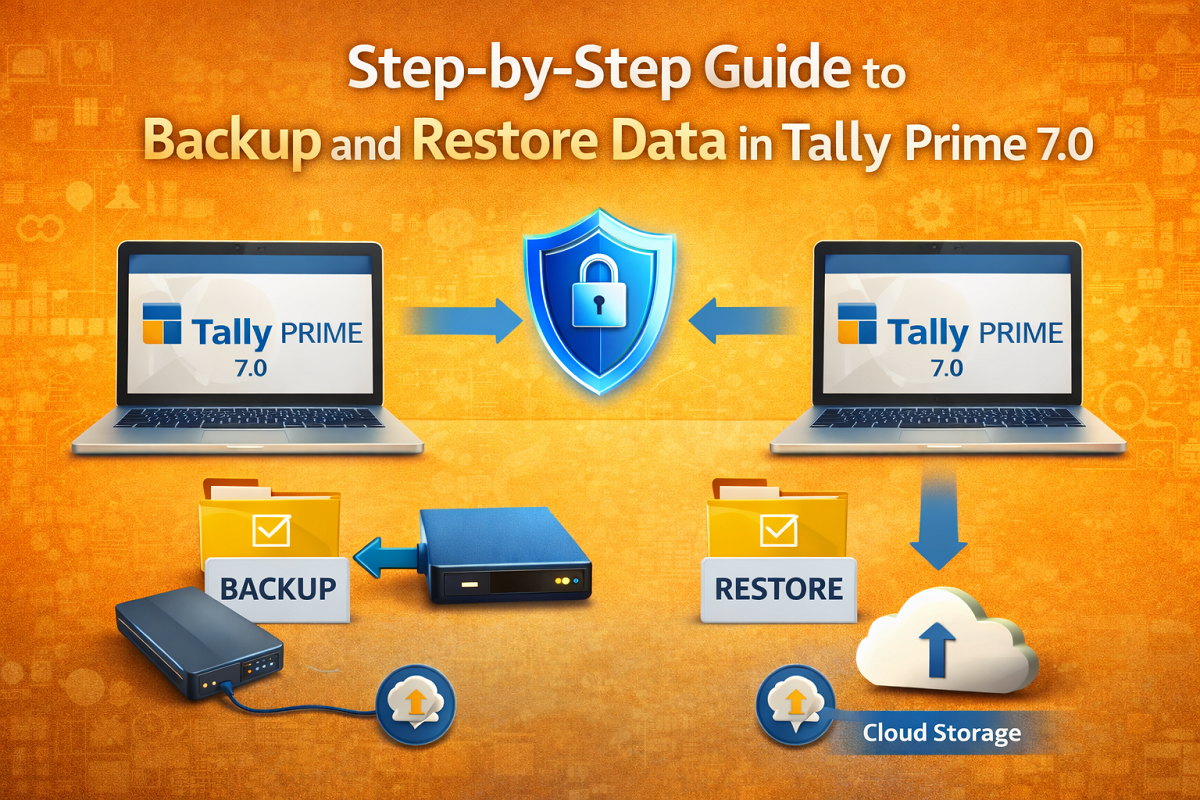
What changed in 2026 for Tally users? Cyber threats are rising, hardware failures are more frequent than most businesses expect, and compliance-driven audits now demand instant access to financial data. In recent months, many businesses have learned the hard way that a single system crash, ransomware attack, or accidental deletion can wipe out years of accounting records within seconds. The pressure is real—without proper backups, companies risk operational shutdown, GST filing delays, audit complications, and even financial penalties.
This is why data backup in Tally Prime 7.0 is no longer optional—it is business-critical. The latest environment demands smarter data protection habits and faster recovery capabilities. The benefit is simple but powerful: with a proper backup and restore strategy, your business stays operational even during unexpected disruptions. Whether you run a small firm or a growing enterprise, knowing how to backup and restore data in Tally Prime 7.0 ensures continuity, confidence, and complete control over your financial information.
Why Backup Is Critical in Tally Prime 7.0
Your Tally data is more than numbers—it represents invoices, GST records, inventory details, payroll, and financial history. Losing this data can mean:
-
Rebuilding accounts from scratch
-
Facing compliance risks
-
Losing customer and vendor records
-
Experiencing operational downtime
-
Damaging business credibility
A structured backup process protects your organization from these risks and ensures you are always prepared for the unexpected.
A Real Business Story: One Backup That Saved Everything
Rajesh, a distributor, had maintained six years of accounting data in Tally. Like many business owners, he assumed nothing would go wrong. One morning, his office server failed without warning. Panic spread quickly—billing stopped, outstanding payments couldn’t be tracked, and GST deadlines were approaching.
Fortunately, his accountant had recently scheduled weekly backups on an external drive. Within hours, the data was restored on another system. Business resumed the same day. Rajesh later admitted, “That backup didn’t just save data—it saved my business reputation.”
Stories like this highlight an important truth: backups are not technical tasks—they are business survival strategies.
What Is Tally Data Backup?
A backup is a secure copy of your company data stored separately from your primary system. If the original data becomes corrupted, deleted, or inaccessible, the backup allows you to restore everything quickly.
Good backup practices provide:
-
Data safety
-
Faster recovery
-
Audit readiness
-
Business continuity
When Should You Take a Backup?
Experts recommend backing up Tally data:
✅ Daily for high-transaction businesses
✅ Weekly for moderate activity
✅ Before major updates or system changes
✅ Before financial year closing
✅ Prior to data migration
Remember: the cost of backup is minimal—the cost of data loss is enormous.
Step-by-Step: How to Take Backup in Tally Prime 7.0
Follow these simple steps:
Step 1: Open Tally Prime
Launch Tally Prime 7.0 on your system.
Step 2: Go to the Gateway of Tally
From the main screen, look for the Backup option.
Step 3: Select “Backup”
Click or press the shortcut key displayed on-screen.
Step 4: Choose Source Folder
This is where your current company data is stored.
Step 5: Select Destination Folder
Choose where you want to save the backup:
-
External hard drive
-
USB drive
-
Network location
-
Cloud-synced folder
Pro Tip: Avoid storing backups on the same system as the original data.
Step 6: Select Company
Choose one or multiple companies to backup.
Step 7: Start Backup
Confirm the action and allow Tally to complete the process.
✔ Your data is now protected.
Step-by-Step: How to Restore Data in Tally Prime 7.0
Restoring data is equally simple but extremely powerful during emergencies.
Step 1: Open Tally Prime
Launch the software.
Step 2: Select “Restore”
Find the restore option from the Gateway of Tally.
Step 3: Choose Backup Location
Browse to the folder where your backup is stored.
Step 4: Select Destination Folder
Pick the folder where restored data should be placed.
Step 5: Confirm Restore
Start the restore process and wait for completion.
Step 6: Load the Company
Open the restored company and verify records.
✔ Your business is ready to operate again.
Best Practices for Tally Data Backup
To maximize protection, follow these strategies:
1. Follow the 3-2-1 Rule
2. Automate Wherever Possible
Use scheduled backups to reduce human error.
3. Encrypt Sensitive Data
Financial data should never be left unprotected.
4. Test Your Backups
A backup is only useful if it can be restored successfully.
5. Maintain Version History
Multiple backup versions help recover data from different dates.
Common Backup Mistakes Businesses Make
Avoid these risky habits:
❌ Taking backups irregularly
❌ Storing backups on the same computer
❌ Not verifying backup files
❌ Ignoring backup before updates
❌ Leaving backup responsibility to one person
Data protection should be part of company policy—not an afterthought.
Benefits of a Strong Backup Strategy
Businesses that prioritize backups enjoy:
Backup is not an expense—it is an investment in stability.
Who Should Pay Special Attention to Tally Backups?
If your data drives decisions, backup is mandatory.
Backup and Business Continuity Go Together
Imagine losing access to financial data during peak season or just before a compliance deadline. Operations halt. Teams scramble. Customers wait.
Now imagine restoring everything within hours. That is the difference a proper backup makes.
Prepared businesses survive disruptions. Unprepared ones struggle.
Conclusion
In today’s digital-first environment, data is one of your company’s most valuable assets. Tally Prime 7.0 makes backup and restore simple—but the responsibility to use these features consistently lies with the business.
A few minutes spent on backups can prevent days—or weeks—of damage. Whether facing cyber threats, hardware failures, or human errors, a strong backup strategy ensures your business remains resilient, compliant, and operational.
Don’t wait for a crisis to realize the importance of backups. Protect your Tally data today to secure your business tomorrow.
Frequently Asked Questions
Why is data backup important in Tally Prime 7.0?
Data backup protects your financial records from system crashes, cyberattacks, accidental deletion, and hardware failures. Without a backup, businesses risk losing invoices, GST data, inventory records, and years of accounting history.
Can I restore Tally data on another computer?
Yes. Tally Prime allows you to restore backup data on any system with Tally installed. This is extremely helpful if your primary system fails or you migrate to a new device.
Does Tally Prime automatically take backups?
Tally Prime primarily supports manual backups, but businesses can implement scheduled backups using system tools or IT support to ensure consistency and reduce human error.
How long does it take to backup or restore data in Tally?
Backup and restore time depends on data size. Small businesses may complete the process in minutes, while larger databases may take longer. However, the time invested is minimal compared to the risk of losing critical data.
CA. Darshit Malhotraa has hands-on experience in GST compliance, accounting reviews, and MSME consulting. He regularly works with businesses transitioning from manual systems to digital accounting platforms. His content emphasizes real-world problem solving and operational efficiency.