Call CA Tally HelpDesk
+91 9205471661,
7428779101
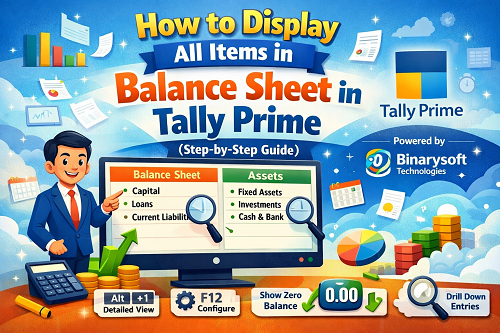
Introduction
The Balance Sheet is one of the most important financial statements for any business. It shows the financial position of a company on a particular date, including assets, liabilities, and capital.
In Tally Prime, the Balance Sheet is auto-generated from your accounting entries. However, many users face a common issue:
not all ledgers or items appear clearly or in detail in the Balance Sheet view.
This article explains how to display all items in the Balance Sheet in Tally Prime, including configuration options, common mistakes, and best practices—using simple, step-by-step instructions.
Understanding the Balance Sheet in Tally Prime
Before making changes, it’s important to understand how Tally Prime structures the Balance Sheet.
The Balance Sheet is divided into two main parts:
1. Liabilities
- Capital Account
- Reserves & Surplus
- Secured Loans
- Unsecured Loans
- Current Liabilities
2. Assets
- Fixed Assets
- Investments
- Current Assets
- Loans & Advances
- Cash & Bank Balances
Tally Prime automatically groups ledgers under these heads based on ledger group selection.
Why All Items May Not Appear in the Balance Sheet
If some items are missing or summarized, it may be due to:
- Incorrect ledger grouping
- Net balances being displayed instead of detailed breakup
- Zero-balance ledgers hidden
- Default Balance Sheet configuration
- Using condensed view instead of detailed view
The good news: all of this can be fixed easily using Tally Prime features.
Step-by-Step: How to Display All Items in Balance Sheet in Tally Prime
Step 1: Open the Balance Sheet
- Open Tally Prime
- Select your company
- From Gateway of Tally, go to:
Reports → Balance Sheet
Step 2: Switch to Detailed View
By default, Tally may show a summarized Balance Sheet.
- Press Alt + F1
- This toggles between:
- Condensed view
- Detailed view
✔️ Detailed view shows all groups and sub-groups clearly
Step 3: Expand Groups to View All Ledgers
To see individual items:
- Place the cursor on any group (e.g., Current Assets)
- Press Enter to drill down
- Continue pressing Enter until individual ledgers appear
This drill-down feature allows you to see every item contributing to the Balance Sheet.
Step 4: Show Zero-Balance Ledgers
Sometimes ledgers do not appear because they have zero balance.
- Press F12 (Configure)
- Enable the option:
Show Zero Balances: Yes
- Accept the screen
✔️ Now all ledgers—even with zero value—will be visible.
Step 5: Disable Netting of Assets and Liabilities
Tally may net off balances like debtors and creditors.
- Press F12 (Configure)
- Set:
- Accept
✔️ This displays gross values, showing all items separately.
Step 6: Verify Ledger Grouping
Incorrect grouping is a major reason items appear in the wrong place or not at all.
To check a ledger:
- Go to Gateway of Tally → Chart of Accounts → Ledgers
- Select the ledger
- Ensure it is grouped correctly under:
- Fixed Assets
- Current Assets
- Current Liabilities
- Loans (Liability) etc.
✔️ Correct grouping ensures correct Balance Sheet display.
Step 7: Use Group Summary for Full Visibility
To see all items under one head:
- Open Balance Sheet
- Select any group (e.g., Current Liabilities)
- Press Alt + Enter
This opens Group Summary, showing all related ledgers and balances.
Step 8: Check Date Range
If entries are outside the selected period, items may not appear.
- Press F2 (Date)
- Select the correct date or financial year
✔️ Always confirm the reporting period.
Common Mistakes to Avoid
- Posting entries directly to capital or fixed asset groups
- Using incorrect ledger groups
- Forgetting to refresh view using Alt + F1
- Ignoring F12 configuration options
- Not reconciling opening balances
Avoiding these mistakes ensures a complete and accurate Balance Sheet.
Best Practices for Accurate Balance Sheet in Tally Prime
- Maintain proper ledger classification
- Regularly review group summaries
- Reconcile bank and cash balances
- Avoid mixing personal and business expenses
- Periodically verify opening balances
Benefits of Viewing All Items in Balance Sheet
- Clear financial visibility
- Better decision-making
- Accurate statutory compliance
- Easy audit and review
- Improved financial control
About Binarysoft Technologies
For businesses and professionals who want expert guidance in Tally, system setup, customization, and compliance support:
Powered by Binarysoft Technologies – Authorized Tally Partner
�� Location:
1626/33, 1st Floor, Naiwalan, Karol Bagh, New Delhi – 110005, INDIA
�� Contact Us:
+91 7428779101
+91 9205471661
+91 8368262875
�� Email:
tally@binarysoft.com
�� Working Hours:
10:00 AM – 6:00 PM (Mon–Fri)
Binarysoft Technologies helps businesses optimize accounting processes using solutions from Tally Solutions, ensuring accuracy, compliance, and peace of mind.
Conclusion
Displaying all items in the Balance Sheet in Tally Prime is not complicated—it just requires the right configuration and understanding of ledger structure. By using Alt + F1, F12 settings, correct grouping, and drill-down options, you can ensure complete financial transparency.
For professional assistance, setup, or Tally support, Binarysoft Technologies is always ready to help.
Frequently Asked Questions
Why are some ledgers not visible in my Balance Sheet?
Usually due to incorrect grouping, zero balance settings, or condensed view mode.
How do I see individual ledger balances in Balance Sheet?
Press Enter on any group or use Alt + F1 for detailed view.
Can I show zero-value items in Balance Sheet?
Yes. Enable Show Zero Balances = Yes in F12 Configuration.
What is the best way to check wrong balances?
Use Group Summary and drill down ledger-wise to identify errors.
CA. Harshit Gaurwaadi is a practicing Chartered Accountant with hands-on experience in accounting systems, GST compliance, and MSME advisory. He regularly works with small and mid-sized businesses to streamline inventory, billing, and statutory processes using modern accounting software. His articles focus on practical, ground-level challenges faced by Indian traders and professionals.