Call CA Tally HelpDesk
+91 9205471661,
7428779101
What Changed in 2026: Why Manual Excel-to-Tally Entry Is Becoming a Business Bottleneck
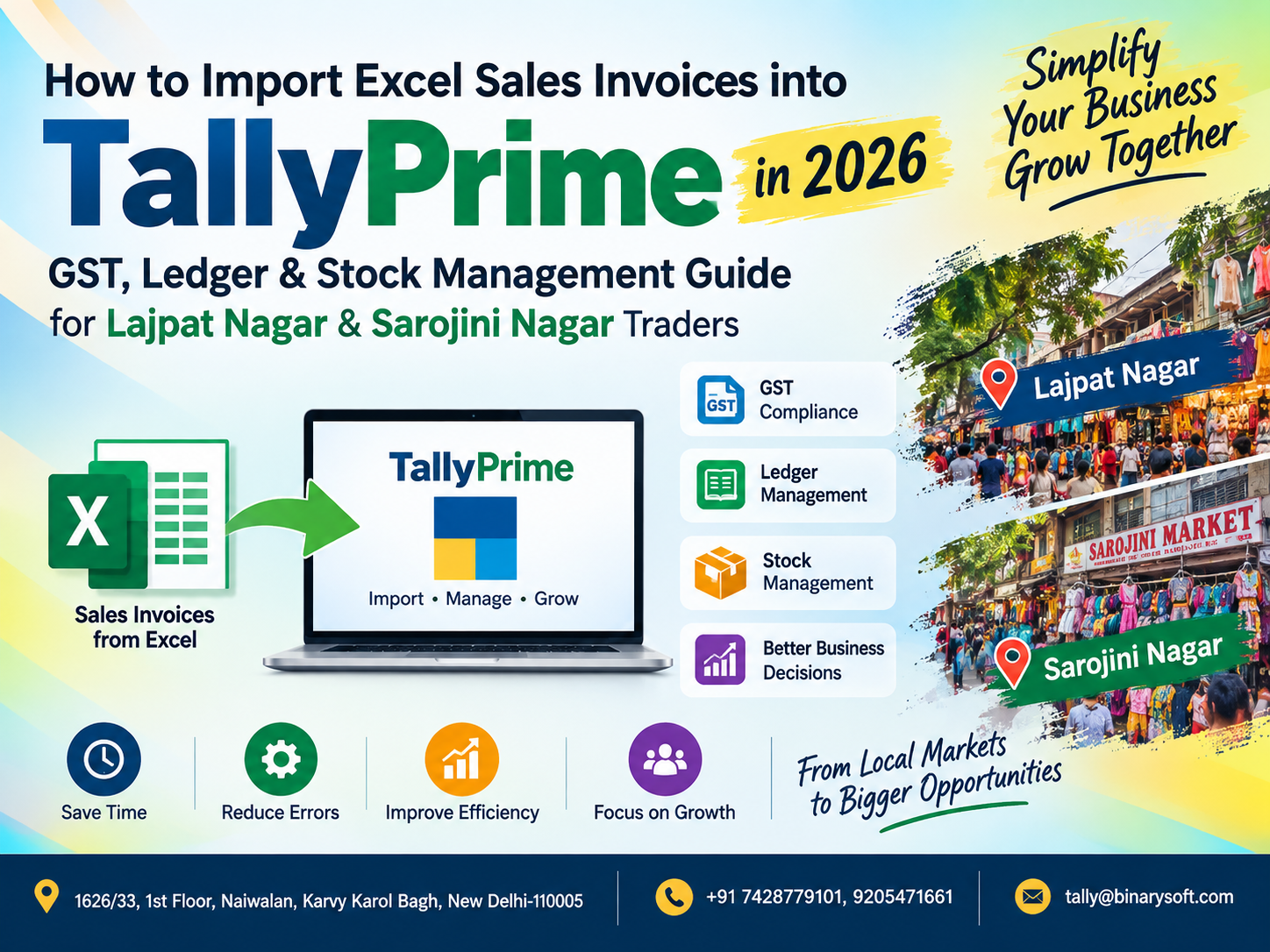
In 2026, traders in Lajpat Nagar and Sarojini Nagar are processing more sales data across retail counters, wholesale orders, B2B customers, online channels and GST invoices. The pressure appears when hundreds or thousands of invoices maintained in Excel must also be recorded correctly in TallyPrime. Re-entering every invoice manually can consume valuable accounting time and increase the risk of duplicate vouchers, wrong GST rates, incorrect party ledgers and stock mismatches. A structured Excel-to-TallyPrime import workflow can make this process far more manageable. Instead of typing invoices one by one, businesses can organize Excel data into a standardized format, validate customer and item information, map GST and ledger details, and then process sales transactions systematically into TallyPrime. The benefit is not merely faster data entry. Businesses gain cleaner books, better inventory visibility, easier GST reconciliation and a scalable accounting process as transaction volumes grow.
Excel Sales Data Is Everywhere, But Accounting Needs Structure
Excel continues to be one of the most commonly used tools for maintaining business data.
A trader may receive sales information from a billing application, e-commerce platform, branch office, salesperson, distributor network, ERP system or another internal application.
In many cases, that information ultimately reaches the accounts department as an Excel file.
A typical spreadsheet may contain:
Invoice number
Invoice date
Customer name
GSTIN
State
Item name
SKU or item code
Quantity
Unit
Rate
Discount
Taxable value
GST rate
CGST
SGST
IGST
Invoice value
Transport details
Other references
Having this information in Excel, however, does not automatically mean that the transactions exist in TallyPrime.
The accounting team still needs a reliable method of converting spreadsheet rows into properly structured accounting transactions.
That is where an Excel-to-TallyPrime import workflow becomes valuable.
Why Lajpat Nagar Traders Need Faster Invoice Processing
Lajpat Nagar is a major commercial destination with businesses operating across garments, fashion, footwear, accessories, electronics, home products, restaurants, wholesalers and numerous other categories.
A trader may handle both retail and wholesale customers.
During busy periods, invoice volumes can increase substantially.
If sales information is generated outside TallyPrime and later manually entered into the accounting system, the accounts department may face a growing backlog.
For example, 500 invoices entered manually can mean hundreds of repetitive selections involving:
Party ledger
Sales ledger
Stock item
Quantity
Rate
GST
Invoice number
Date
Narration
A structured import process can reduce much of this repetitive work.
Why Sarojini Nagar Businesses Can Benefit
Sarojini Nagar is well known for high-volume retail activity, particularly in fashion, garments, accessories and lifestyle products.
High transaction volumes can make manual accounting difficult.
Even where a business uses a separate billing system at the counter, management may still want consolidated accounting information in TallyPrime.
Excel can act as a bridge.
Sales data can be exported from the billing system into Excel, cleaned and standardized, validated, and then prepared for processing into TallyPrime.
This can help connect operational billing with accounting and inventory records.
A Lajpat Nagar Trader's Story: 1,200 Invoices Waiting for the Accountant
Imagine a growing garment wholesaler in Lajpat Nagar.
For years, the business had maintained customer orders and invoice information through a combination of billing software and Excel.
When sales volumes were low, the accountant manually entered the invoices into TallyPrime.
The process seemed manageable.
Then the festive season arrived.
Within a few weeks, the business had more than 1,200 invoices waiting to be entered.
The owner was delighted by the sales numbers.
The accountant was overwhelmed.
Every morning, new invoices arrived before the previous day's transactions had been completed.
One invoice was accidentally entered twice. Another was posted against the wrong customer ledger. A few inter-state transactions required correction. Some stock quantities did not match the sales records.
The owner kept asking one simple question:
"Sales are growing, so why are the accounts always behind?"
The problem was not TallyPrime or Excel.
The problem was the repetitive manual bridge between them.
The company then introduced a structured Excel import process. Invoice data was standardized, customer and item masters were mapped, tax information was validated and batches were processed systematically.
For the accountant, the biggest benefit was not just saving time.
For the first time during peak season, the accounting records could keep pace with the business.
What Does Excel Sales Invoice Import into TallyPrime Mean?
Excel sales invoice import means taking sales transaction information stored in a structured spreadsheet and converting or processing it into a format that can be used to create the intended vouchers and related records in TallyPrime.
The exact method can vary depending on:
TallyPrime version
Data structure
Voucher requirements
Business configuration
GST setup
Inventory requirements
Available import or integration mechanism
Customization requirements
The important principle is that Excel data should first be validated and mapped to the intended TallyPrime structure.
Importing an uncontrolled spreadsheet directly into live accounts can create more problems than it solves.
The Basic Excel-to-TallyPrime Workflow
A controlled process can be understood as:
Source Sales Data
to
Excel Standardization
to
Data Cleaning
to
Master Mapping
to
GST Validation
to
Stock Validation
to
Duplicate Checking
to
Import-Ready Data
to
TallyPrime Processing
to
Post-Import Validation
to
GST and Stock Reconciliation
Every stage has a purpose.
The goal is not simply to make data move faster. The goal is to make the data move correctly.
Step 1: Prepare the Excel Sales Invoice File
Start by creating a consistent spreadsheet structure.
Each column should have a defined purpose.
A sales invoice import template could contain fields such as:
Invoice Number
Invoice Date
Voucher Type
Customer Name
Customer GSTIN
Customer State
Place of Supply
Item Code
Item Name
HSN/SAC
Quantity
Unit
Rate
Discount
Taxable Amount
GST Rate
CGST Amount
SGST Amount
IGST Amount
Round Off
Invoice Total
Narration
The actual fields required will depend on the business and the intended TallyPrime configuration.
Avoid mixing unrelated information in the same column.
For example, do not put customer name, GSTIN and mobile number into one cell if each needs to be processed separately.
Step 2: Standardize Invoice Numbers
Invoice numbers are critical transaction identifiers.
The Excel sheet should preserve the exact intended invoice number.
Before processing, check for:
Blank invoice numbers
Duplicate invoice numbers
Unexpected special characters
Extra spaces
Incorrect prefixes
Wrong financial-year sequences
Accidental conversion to scientific notation
Excel can sometimes automatically change data formats, especially where values look numeric.
Invoice numbers should therefore be stored and reviewed carefully.
Step 3: Standardize Invoice Dates
Date formatting is another common source of errors.
An Excel workbook may contain dates in different formats.
For example:
01-04-2026
01/04/2026
2026-04-01
1 Apr 2026
While these may represent the same date to a person, an automated workflow needs consistent data.
Choose one controlled source format and validate every row.
Also verify that invoice dates belong to the intended accounting period.
An incorrect year in a single cell can create a voucher in the wrong financial period.
Step 4: Clean Customer Names
Customer names in Excel should match the intended party masters in TallyPrime.
Suppose TallyPrime contains:
ABC Enterprises
But Excel contains:
ABC Enterprise
ABC ENTERPRISES
ABC Enterprises Delhi
A.B.C. Enterprises
These may appear similar to a person but can be interpreted as different values during automated processing.
A mapping table can solve this problem.
For example:
Excel Customer Name: ABC Enterprise
TallyPrime Ledger: ABC Enterprises
This allows different source naming conventions to map to one approved accounting ledger.
Step 5: Validate Customer GSTIN
Where GSTIN is applicable to the transaction, it should be checked before processing.
Basic validation can identify:
Missing GSTIN
Unexpected character length
Leading or trailing spaces
Incorrect formatting
GSTIN attached to the wrong customer
Duplicate customer masters with different GSTINs
However, basic Excel validation should not be treated as proof that a GSTIN is legally valid or currently active.
Appropriate GST details should be verified through the relevant official processes when required.
Step 6: Map Customer Ledgers
Every customer represented in the import data should be connected to the correct TallyPrime ledger where party-wise accounting is required.
Create a customer mapping sheet.
It could contain:
Source Customer Code
Source Customer Name
GSTIN
State
Tally Ledger Name
Ledger Group
Mapping Status
Remarks
Once mappings are reviewed, future imports become much faster.
New customers can be flagged before processing.
Step 7: Configure the Sales Ledger
Sales transactions should flow to the intended sales ledgers.
Depending on the company's accounting structure, businesses may maintain separate sales ledgers for different purposes.
Examples could include different product categories, tax treatments or business divisions.
Do not automatically create dozens of unnecessary sales ledgers merely because Excel contains many product categories.
The ledger structure should be designed according to actual accounting and reporting requirements.
Step 8: Map Stock Items
For inventory-based invoicing, stock mapping is essential.
Suppose the Excel file contains:
SKU: SHIRT-BLU-L
Product: Blue Shirt Large
But TallyPrime contains:
Men's Shirt – Blue – L
The source SKU can be used as a reliable mapping key.
A stock mapping table could contain:
Source SKU
Source Item Name
TallyPrime Stock Item
Stock Group
Unit
HSN
GST Rate
Mapping Status
SKU-based mapping is often more reliable than matching only on product descriptions.
Step 9: Validate Units of Measurement
Quantity information is meaningful only when units are consistent.
A business might use:
Nos
PCS
Box
Kg
Meter
Pair
Set
Dozen
If Excel says "PCS" but the relevant TallyPrime stock item is configured differently, the import process needs an appropriate mapping rule.
Unit errors can affect stock quantities even when the financial value of an invoice looks correct.
Step 10: Check HSN/SAC Information
Where relevant, HSN or SAC information should be reviewed as part of the GST data preparation process.
Businesses dealing in multiple product categories should avoid blindly applying one code across every item.
The correct classification depends on the goods or services involved.
The accounting team should use the classifications approved for the business and consult a qualified GST professional where necessary.
Step 11: Validate GST Rates
The spreadsheet may contain multiple tax rates depending on the goods or services being sold.
Before processing, compare the GST rate in the sales data with the approved item or tax mapping.
Create exception checks for unexpected rates.
For example, if an item is normally mapped to a particular approved tax treatment but the source file contains something different, the row should be flagged for review rather than automatically processed.
This can prevent large batches of tax errors.
Step 12: Understand CGST, SGST and IGST
GST treatment can depend on the nature and place of supply of the transaction.
For a typical taxable intra-state supply, the applicable tax may be split between CGST and SGST.
For a typical taxable inter-state supply, IGST may apply.
The import workflow should therefore use verified transaction information rather than assuming that every invoice has the same tax structure.
For Delhi traders selling to customers across India, this distinction becomes particularly important.
Step 13: Validate Place of Supply
Place-of-supply information can affect GST treatment.
The Excel data should therefore preserve the relevant state or place-of-supply information where required.
A state mapping table can standardize variations.
For example:
Delhi
New Delhi
NCT of Delhi
DELHI
All source variations can be mapped according to the business's approved data structure.
The tax treatment itself should follow applicable GST requirements.
Step 14: Calculate Taxable Value Carefully
A basic transaction may involve:
Gross Item Value
Less Discount
Equals Taxable Value
Then the applicable GST is calculated according to the tax treatment.
However, real-world invoices can involve line-level discounts, invoice-level discounts, freight, other charges and rounding.
The import process should follow the same calculation logic as the source invoice.
Otherwise, the Excel invoice total and TallyPrime voucher total may differ.
Step 15: Handle Discounts Correctly
Businesses in Lajpat Nagar and Sarojini Nagar frequently use promotional and negotiated pricing.
Discounts can appear as:
Percentage discount
Fixed discount
Item-level discount
Invoice-level discount
Trade discount
The Excel import template should clearly identify how discounts are represented.
Do not mix percentage and amount-based discounts in the same field without a clear rule.
Step 16: Handle Round-Off Differences
Even a ₹0.01 or ₹1 difference can become frustrating when hundreds of invoices are being reconciled.
Rounding logic should therefore be standardized.
If the source billing system calculates invoice totals differently from the accounting workflow, small differences can accumulate across large transaction volumes.
A dedicated round-off treatment can help ensure that imported voucher totals match approved invoice values.
Step 17: Check for Duplicate Invoices Before Import
Duplicate prevention should be a mandatory control.
Before processing, compare invoice numbers against:
Other rows in the current Excel file
Previously processed batches
Existing relevant vouchers in TallyPrime
Previous import logs
A simple duplicate check can prevent serious accounting problems.
Imagine importing 2,000 invoices and accidentally processing the same file again.
Without duplicate controls, sales, GST and stock could all be overstated.
Step 18: Create an Import Batch Number
Every Excel import should have a unique batch reference.
For example:
SALES-APR26-001
SALES-APR26-002
SALES-MAY26-001
The batch reference can be stored in the import log or another appropriate tracking mechanism.
This makes troubleshooting easier.
If an issue appears later, the accounts team can identify which source file and processing batch produced the relevant transactions.
Step 19: Keep the Original Excel File Unchanged
Always preserve the original source file.
Use separate folders such as:
Original Data
Working Files
Validated Data
Import Ready
Imported
Exception Reports
Reconciliation
This creates a simple audit trail.
If a question arises later, the original source information remains available.
Step 20: Create a Pre-Import Validation Report
Before processing transactions, generate a summary.
For example:
Total rows
Unique invoices
Duplicate invoices
Total taxable value
Total CGST
Total SGST
Total IGST
Total invoice value
Unique customers
Unmapped customers
Unique items
Unmapped stock items
Invalid dates
Missing GSTINs where expected
Unknown GST rates
Validation status
This gives the accountant a clear picture before data reaches the accounting system.
Step 21: Back Up TallyPrime Data
Before a significant bulk import, take an appropriate backup.
This is especially important during initial testing or when a new template is introduced.
If incorrect mapping produces hundreds of unwanted entries, having a clean backup provides an additional recovery option.
Bulk processing should never begin with the assumption that nothing can go wrong.
Step 22: Test with a Small Batch
Do not start a new import configuration with 10,000 invoices.
Start with representative transactions.
For example:
One local B2B invoice
One local B2C invoice
One inter-state invoice
One multi-item invoice
One discounted invoice
One invoice with rounding
One transaction from each major GST rate used by the business
Review the results carefully.
Once the test vouchers match the intended accounting treatment, move to larger batches.
Step 23: Process the Validated Sales Data
After successful testing, the validated sales data can be processed using the selected TallyPrime import or integration workflow.
The exact method will depend on the TallyPrime environment and the solution being used.
The objective is to convert structured source data into correctly configured sales vouchers while preserving relevant accounting and inventory information.
Automation should follow the company's approved accounting rules.
Step 24: Validate TallyPrime After Import
Successful processing does not mean the work is finished.
Run post-import checks.
Compare:
Number of invoices
Total sales
Taxable value
CGST
SGST
IGST
Total invoice value
Customer balances
Stock quantities
The control totals should agree with the validated source data, subject to any approved adjustments.
Step 25: Review Customer Ledgers
Open sample customer accounts after processing.
Check whether:
Invoices appear under the correct customer
Invoice numbers are correct
Dates are correct
Amounts match
GST treatment is correct
Outstanding balances are appropriate
This is particularly important when a new customer-mapping process has been introduced.
Step 26: Review Stock Movement
For inventory invoices, check stock reports after processing.
Confirm that:
Correct items were reduced
Quantities match
Units are correct
Item codes map properly
Unexpected negative stock has not been created
Stock valuation has not been affected by incorrect quantities
A financially correct invoice with incorrect inventory mapping is still a problematic import.
Step 27: GST Reconciliation
After processing, compare relevant accounting totals with the source sales data and the company's GST reporting process.
Review differences in:
Taxable values
CGST
SGST
IGST
Invoice numbers
GSTIN
Credit/debit adjustments where relevant
Place of supply
Tax rates
Reconciliation should be a regular process, not an activity postponed until a filing deadline.
Why Manual Copy-Paste Is Risky
Manual data entry seems simple because it requires no integration setup.
But the risk increases with transaction volume.
Common mistakes include:
Wrong invoice number
Wrong date
Incorrect customer
Duplicate invoice
Incorrect stock item
Wrong quantity
Incorrect GST rate
CGST/SGST used instead of IGST
IGST used instead of CGST/SGST
Incorrect discount
Missed invoice
Wrong invoice total
These mistakes can affect accounting, inventory and tax reporting simultaneously.
Why Bulk Import Is Different from Blind Automation
A professional import workflow is not simply:
Excel → Import → Finished.
It should be:
Excel → Validate → Map → Review → Test → Import → Reconcile.
This distinction matters.
Automation can process incorrect data much faster than a person can manually enter it.
Therefore, validation must come before speed.
Use an Exception-Based Accounting Approach
Instead of manually reviewing every correct row, businesses can design the workflow to highlight exceptions.
For example:
Missing customer mapping
Unknown SKU
Duplicate invoice
Invalid date
Unexpected GST rate
Missing state
GSTIN issue
Quantity zero
Negative value
Unusual invoice total
The accountant then focuses attention on the transactions that actually require judgment.
This can make high-volume accounting much more efficient.
Sales Returns Should Have a Separate Process
Businesses should not treat sales returns as ordinary positive sales invoices.
A separate workflow should identify:
Original invoice
Customer
Returned item
Quantity
Return date
Tax impact
Credit note reference
Stock impact
A properly designed return process helps keep sales, GST and inventory aligned.
What About Credit Notes and Debit Notes?
Credit and debit adjustments should also be processed according to their actual accounting nature.
The Excel template should clearly distinguish transaction types.
For example, a transaction-type column can help differentiate:
Sales Invoice
Sales Return
Credit Note
Debit Note
Other Approved Adjustment
The import logic can then apply the appropriate treatment.
Excel-to-TallyPrime Import for Wholesale Traders
Wholesale businesses can benefit significantly because they often generate detailed B2B invoices containing many line items.
A single invoice might contain 30, 50 or even 100 items.
Manually entering every line can take substantial time.
With structured Excel data, each line can be mapped to its intended stock item while the complete invoice remains connected to the correct customer.
This can be especially useful for wholesalers in Lajpat Nagar supplying retailers across Delhi and other states.
Excel-to-TallyPrime Import for Retail Businesses
Retail businesses may process a much higher number of smaller-value transactions.
The appropriate accounting structure will depend on the billing system, GST requirements and level of party-wise detail required.
A structured import workflow can consolidate data according to the business's approved accounting model while maintaining the necessary tax and inventory information.
Multi-Location Businesses
Some traders operate from multiple stores, warehouses or branches.
The Excel file may therefore contain a location or branch field.
Where the TallyPrime configuration supports the required structure, the import mapping can use this information to route transactions appropriately.
Businesses should establish consistent location codes.
For example:
LN-01 – Lajpat Nagar
SN-01 – Sarojini Nagar
WH-01 – Warehouse
Standard codes reduce ambiguity.
Stock Management Benefits
When sales invoices are connected correctly with inventory records, management gains better visibility into stock movement.
Businesses can more easily monitor:
Opening stock
Sales quantities
Closing stock
Fast-moving products
Slow-moving products
Out-of-stock items
Negative stock situations
Product-wise sales
Category-wise movement
For high-volume traders, accurate stock information can be just as valuable as faster accounting.
Better Ledger Management
Bulk import can also improve ledger consistency when mapping rules are centrally maintained.
Instead of employees selecting different sales or party ledgers manually, approved source values can be connected to defined TallyPrime masters.
This can reduce inconsistencies in reporting.
However, mapping tables should be reviewed periodically because businesses create new customers, items and transaction types over time.
Month-End Closing Becomes Easier
A structured Excel-to-TallyPrime workflow can improve month-end accounting.
Instead of discovering a large invoice-entry backlog at month-end, businesses can process validated batches regularly.
A practical cycle might be:
Collect sales data
Validate it
Resolve exceptions
Import transactions
Reconcile totals
Review stock
Review GST
Close the batch
Repeating this process throughout the month reduces last-minute pressure.
How Much Time Can Automation Save?
Consider a business generating 2,500 invoices every month.
If manual processing requires even two minutes per invoice, that represents more than 83 hours of data-entry effort.
And that estimate does not include error correction or reconciliation.
The purpose of bulk processing is to redirect some of that time toward higher-value accounting work.
Instead of typing every transaction, the accounts team can focus on:
Exceptions
Reconciliation
GST review
Customer balances
Inventory differences
Management reporting
Scalability Matters in 2026
A process that works for 100 invoices may not work for 10,000.
Businesses should therefore design their accounting workflow around expected growth.
If a trader expects expansion into online sales, wholesale distribution, multiple stores or higher invoice volumes, standardized data processing becomes increasingly important.
Automation allows transaction volume to grow without requiring the same proportional increase in manual accounting effort.
Data Security and Access Control
Sales spreadsheets can contain commercially sensitive information.
They may include:
Customer information
GSTINs
Product prices
Discount structures
Sales volumes
Business margins
Transaction values
Businesses should restrict access to authorized staff.
Files should be stored securely and backed up appropriately.
Avoid circulating accounting files unnecessarily through personal messaging accounts or uncontrolled storage locations.
Maintain an Import Audit Trail
For every processing batch, maintain a record containing:
Batch ID
Source filename
Invoice period
Processing date
Invoice count
Taxable value
CGST
SGST
IGST
Invoice total
Prepared by
Reviewed by
Exception count
Status
Remarks
This provides traceability if a discrepancy is discovered later.
Common Excel-to-TallyPrime Import Mistakes
One of the most common mistakes is inconsistent master naming.
Another is attempting a large import without testing.
Other frequent problems include duplicate invoices, incorrect date formats, blank mandatory fields, wrong stock mapping, unexpected GST rates, incorrect units, changed Excel formulas and accidental deletion of rows.
A controlled template and validation process can prevent many of these issues before they reach TallyPrime.
Do Not Modify the Template Structure Without Review
Once an import template has been tested, users should avoid casually changing column names, moving fields or adding formulas.
A small spreadsheet change can affect automated mapping.
If a new field is required, update and test the template systematically.
Maintain version numbers such as:
SalesImport_v1.0
SalesImport_v1.1
SalesImport_v2.0
This makes it easier to identify which structure was used for each processing period.
Excel Import and Business Intelligence
Clean sales data can support more than bookkeeping.
Once transactions are properly classified, businesses can analyze:
Customer-wise sales
Item-wise sales
Monthly growth
GST rate-wise turnover
State-wise sales
Product category performance
Average invoice value
Top customers
Fast-moving inventory
Sales trends
This can turn accounting data into useful business information.
Preparing for Year-End Becomes Easier
When sales invoices are regularly processed and reconciled, year-end accounting becomes more manageable.
The business has fewer missing invoices, fewer unexplained customer balances and better-aligned stock records.
Instead of spending weeks correcting basic transaction-entry problems, the accounts team can focus on closing adjustments, reconciliations and financial reporting.
2026 Best-Practice Workflow for Lajpat Nagar and Sarojini Nagar Traders
For traders handling significant sales volumes, a disciplined process can make a substantial difference.
Maintain a standard Excel template.
Use unique invoice numbers.
Keep customer and item codes consistent.
Validate GST information.
Maintain master mappings.
Check duplicates.
Create batch IDs.
Take backups.
Test before bulk processing.
Import only validated data.
Reconcile totals after processing.
Review GST.
Review stock.
Maintain an import log.
Resolve exceptions promptly.
This turns Excel-to-TallyPrime processing from an occasional technical task into a controlled accounting process.
Important GST and Accounting Consideration
GST rules, rates, classifications and reporting requirements can change, and the correct treatment depends on the facts of each transaction.
Businesses should verify applicable GST rates, HSN/SAC classification, place-of-supply treatment, invoice requirements and other tax matters with their Chartered Accountant or qualified GST professional.
An import system should apply accounting and tax rules that have already been reviewed and approved.
Automation should not replace professional tax judgment.
How Binarysoft Technologies Can Help
Binarysoft Technologies, an Authorized Tally Partner, can assist businesses with TallyPrime solutions and structured Excel-to-TallyPrime accounting workflows.
For traders in Lajpat Nagar, Sarojini Nagar and other commercial markets handling high sales volumes, a properly designed import workflow can help reduce repetitive voucher entry while improving consistency.
Depending on business requirements, the process can cover sales invoices, party ledger mapping, GST classification, stock-item mapping, invoice validation, duplicate checks and post-import reconciliation.
The objective is not merely to move Excel rows into TallyPrime.
The objective is to create a reliable accounting workflow in which source sales information can be processed efficiently while maintaining control over ledgers, GST and inventory.
Conclusion
For Lajpat Nagar and Sarojini Nagar traders, growing sales should be a business opportunity rather than an accounting burden.
When hundreds or thousands of sales invoices are maintained in Excel, manually re-entering every transaction into TallyPrime can consume significant time and introduce avoidable errors.
A structured Excel-to-TallyPrime import workflow offers a more scalable solution.
Start with clean and standardized source data. Validate invoice numbers and dates. Map customers, sales ledgers and stock items. Review GST information. Check place of supply. Detect duplicates. Create controlled import batches. Take backups. Test representative transactions before processing large volumes.
Most importantly, reconcile the results after every import.
Automation works best when it combines speed with control.
With a properly planned workflow, businesses can reduce repetitive data entry, maintain cleaner ledgers, improve GST reconciliation, keep stock records better aligned and give their accounts team more time to focus on business-critical financial information.
Frequently Asked Questions
Can Excel sales invoices be imported into TallyPrime?
Structured sales data can be processed into TallyPrime through suitable supported import or integration workflows, depending on the version, configuration and data structure being used.
What information should an Excel sales invoice file contain?
Depending on requirements, it may contain invoice number, date, customer, GSTIN, state, item, HSN/SAC, quantity, unit, rate, discount, taxable value, GST rate, CGST, SGST, IGST and invoice total.
CA. Lakshy Vermaa advises small and mid-sized businesses on accounting discipline, tax compliance, and process improvement. With exposure to retail and trading environments, he writes practical articles aimed at helping business owners gain better financial visibility and control.