Call CA Tally HelpDesk
+91 9205471661,
7428779101

You may be a customer who wants to use customisation done for your TallyPrime, a TDL developer who do customisations using TDL, or a Tally Partner who develop various solutions as per your customer needs. All of you need to know how to configure your TDLs or Add-Ons (addon/add on) in TallyPrime.
This topic will talk about various deployment procedures for your TDLs and Add-Ons (addon/add on).
Before understanding deployment procedures, first you should know various types of customisations
Various Types of Customisations
There are 4 types of customisations which can be considered for deployment.
- Local TDL: These are compiled TCPs or TDLs available with the user locally.
- Account TDL: These are those TCPs or TDLs which can be deployed centrally from control centre for single or multiple Tally Serial Numbers.
- Remote TDL: These are those TCPs or TDLs which are available on server but can be only be accessed remotely and don’t have access to these TCPs or TDLs.
- Add-Ons: These are those solutions, which are developed by various Tally Partners across India and those are available on the Tally marketplace called TallyShop.
View TDL Management Report in TallyPrime
In TallyPrime, the list of configured TDLs on TDL Management report. You can access the TDL Management report in the following ways:
- Go to F1:Help > TDL & Add-On
OR
- Go to F1:Help > About
- Go to the section TDL & ADD-On. Press enter on the required data.
OR
- Use Shortcut CTRL+ALT+T from anywhere in TallyPrime.
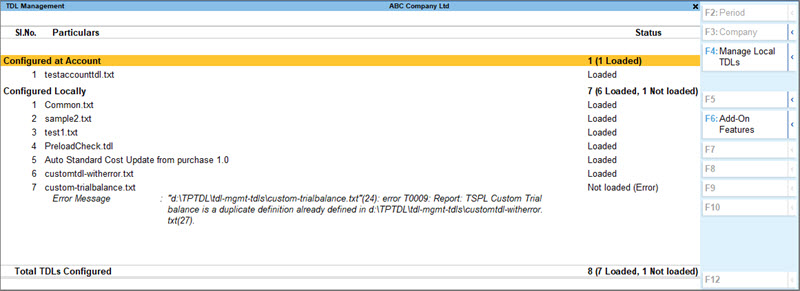
The configured TDLs are shown in the report as given below:
Deploy Local TDLs
- Go to TDL Management.
- Click F4: Manage Local TDLs. TDL Configuration form appears.
- Set Yes to Load selected TDL files on startup.
- Select the required from the file selection screen by selecting the options Specify Path or Select from Drive.
- By selecting the option Specify Path you can mention the directory path and go ahead with the configuration.
- By selecting the option Select from Drive you can traverse through the explorer and select the files from the system.
In the TDL Management report, user can view the number of TDLs configured and how many are loaded along with how many are local TDLs and how many are account TDLs.
Deploy Account TDLs
TallyPrime allows the user to deploy customised TDL programs to a single site or all the sites belonging to an account.
The account administrator can deploy the account TDLs by following the four simple steps shown below:
- Upload Customised TDL Programs
- Create TDL Configuration from Control Centre
- Link TDL Configuration
- Download and update TDL Configuration
Upload Customised TDL Programs
The customised TDL programs can be uploaded from the control centre available on the Tally website. To upload the customised TDL programs the user has to login to Tally website using the account Administrator’s ID and password.
- Log in to Tally Website.
- Click the required Account ID.
- Click Control Centre >TDL Management > List of TDLs.
- Click UPLOAD OTHER TDL
- In Upload TDL Files(s) screen
- Enter a valid name to the program files you want to upload in Name of TDL field.
- Click Choose File.
- Select the required TDL program file(s) from the saved location.
- Check Main file to indicate the file selected is the primary resource file.

- Click UPLOAD to upload the program file(s).
Create TDL Configuration
You can create a TDL Configuration either from the Web Control Centre.
To create a TDL Configuration from the Web Control Centre follow the steps shown:
- Log in to Tally Website.
- Control Center > TDL Management > TDL Configurations.
- CREATE TDL CONFIGURATION.
- Enter a valid name to the TDL configuration in Name of Configuration field.
- Select the TDL files to create the TDL configuration.
- Set to Yes for Allow Local TDL(s) if you want to load local TDL with this TDL configuration else set it to No.
- CREATE to save the TDL Configuration.

Link TDL Configuration with Tally.NET ID
- Select the respective site or account from Control Center > Account Management > Licensing Management screen.
- Select the required TDL Configuration from the section Deployment Information in the Site Information screen.

- Press Save to link the TDL Configuration to the selected site or account.
Download and Update TDL Configuration in TallyPrime
After successfully linking the TDL Configuration to a site or account, in order to download the TDL Configuration, the user has to update the license. On successfully downloading, the TDL configuration resides in the TallyPrime folder for Single User edition or resides in the license server folder for Multi User edition.
- Go to Gateway of Tally.
- Press F1: Help > Settings > License > Manage License.
- Press F5: Update
- Enter the Tally.NET ID and Password in the Update License screen. A message License Updated Successfully appears.
- Restart TallyPrime to apply the TDL configuration to the concerned site or account.
The availability of Account TDLs for a site or an account are displayed in TDL Management report and the number of TDLs loaded are displayed in the About screen.
Deploy Remote TDLs
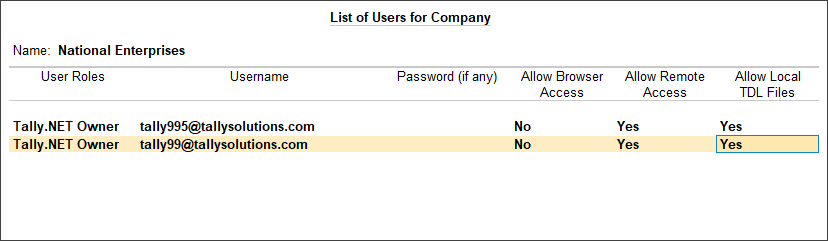
When there are local TDLs and your are accessing TallyPrime remotely. You will not get access the configured local TDLs. If you want to access them you need to set Yes for Allow Local TDL Files in Users for Company screen.
- Alt+K (Company) > Users and Passwords
- Set Yes for Allow Local TDL Files for the remote access enabled Tally.NET ID.
Deploy Add-Ons
TallyShop Add-Ons are the customised solutions developed by our partners which can be deployed with TallyPrime license. The deployment procedure is same as Deploy Account TDLs
CA. Mayankh Singhaal is a Chartered Accountant experienced in accounting systems, statutory audits, and compliance advisory. He has worked with businesses across different sectors to improve reporting accuracy and inventory tracking. His writing focuses on structured growth and compliance-ready operations.