Call CA Tally HelpDesk
+91 9205471661,
7428779101
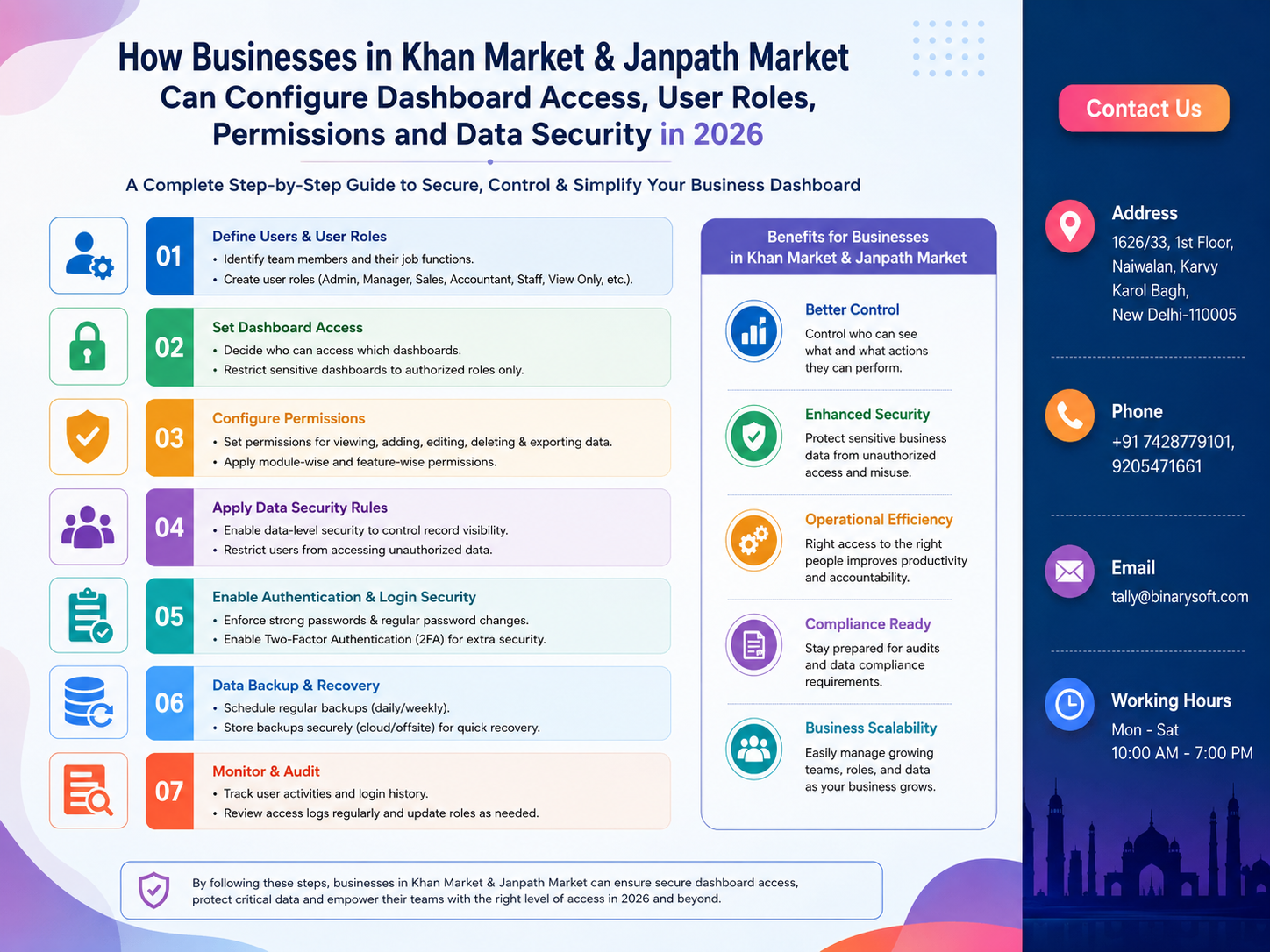
What Changed in 2026: Why Dashboard Access Control Has Become a Business Priority
In 2026, businesses are handling more financial, inventory, GST, customer, banking and management information digitally than ever before. For retailers, wholesalers, service providers and growing enterprises operating in busy commercial locations such as Khan Market and Janpath Market in New Delhi, giving every employee unrestricted access to business data can create unnecessary operational and security risks. As teams grow and owners increasingly depend on real-time dashboards, remote access and digital accounting systems, the pressure to control who can view, enter, modify, approve or export information has increased. A properly configured dashboard access system can solve this challenge by assigning permissions according to actual job responsibilities. Instead of sharing one login or providing complete access to everyone, businesses can create controlled user roles for billing staff, accountants, managers and administrators. The result is stronger data security, clearer accountability, fewer accidental changes and better control without slowing down everyday business operations.
Why Dashboard Access Management Matters for Businesses in Khan Market and Janpath Market
Khan Market and Janpath Market represent two of Delhi's most recognised commercial destinations. Businesses operating in these areas can deal with significant daily transaction volumes, customer enquiries, purchases, inventory movement, supplier payments, billing and financial reporting.
As business processes become increasingly digital, the dashboard often becomes the central point from which employees access important information.
A modern business dashboard may contain sales figures, purchase records, inventory positions, receivables, payables, GST-related information, banking data, customer records, employee activities and management reports.
The question for a business owner is therefore no longer simply:
"Who can log in?"
The more important questions are:
"What should this person be allowed to see?"
"What should this employee be allowed to change?"
"Who should be permitted to approve sensitive transactions?"
"Who can export reports?"
"Who should have access to financial information?"
This is where dashboard access rights and role-based permissions become important.
What Is Dashboard Access Control?
Dashboard access control is a structured method of determining which users can access specific functions, reports, transactions and information within business software.
Rather than providing identical access to every employee, businesses can define permissions according to responsibilities.
For example, a billing executive may need access to sales invoices but may not require access to profitability reports.
A store manager may need inventory reports but should not necessarily have permission to change accounting configurations.
An accountant may require access to GST, ledgers and financial reports but not administrative user-management controls.
The business owner or system administrator may require complete access.
This approach is generally known as role-based access control.
A Story from a Busy Delhi Market: When One Shared Login Became a Business Risk
Imagine a growing retail business operating near Khan Market.
For years, the owner personally handled most financial decisions. As the business expanded, additional employees joined for billing, inventory, accounts and customer service.
To keep things simple, everyone was given the same software login.
Initially, this seemed convenient.
Then, one evening during a particularly busy sales period, the owner noticed that an important transaction report no longer matched the expected figures. A staff member had accidentally modified information while trying to correct another entry.
Nobody had intended to cause a problem.
But because multiple employees were using the same credentials and had similar permissions, determining exactly what happened became difficult.
The owner spent hours checking entries instead of focusing on customers, purchasing and business growth.
The experience changed the way the business approached software access.
Separate users were created.
The cashier received billing access.
The inventory employee received stock-related permissions.
The accountant received accounting and compliance access.
The manager received reporting and approval rights.
Administrative privileges remained with authorised senior personnel.
The biggest improvement was not simply technical security. It was peace of mind.
Employees knew exactly what they were responsible for, managers could review activities more effectively, and the owner no longer needed to worry that routine users could accidentally access or modify sensitive areas.
For a busy business, that confidence can be extremely valuable.
Step 1: Identify Everyone Who Needs Dashboard Access
Before configuring permissions, prepare a list of users who genuinely require access.
Depending on the organisation, these may include:
- Business owner
- Administrator
- Store manager
- Branch manager
- Accountant
- Accounts executive
- Billing executive
- Cashier
- Inventory manager
- Purchase executive
- Sales executive
- GST or compliance team
- Auditor or consultant
- Management personnel
Avoid creating unnecessary accounts.
Every user account should have a clear business purpose.
Step 2: Define Roles Before Creating Permissions
One common mistake is configuring permissions separately for every employee without first defining standard roles.
A better approach is to create roles based on job responsibilities.
For example:
Administrator
The administrator normally requires the highest level of system control.
Depending on the software, administrator permissions may include:
User creation and modification
Role management
Configuration changes
Company settings
Dashboard management
Report access
Backup or data-management functions
Audit information
Security settings
Administrative access should be restricted to trusted personnel.
Business Owner or Management
Owners and senior management generally need broad visibility without necessarily performing everyday transaction entry.
Their dashboard could provide:
Sales performance
Purchase analysis
Cash and bank position
Receivables
Payables
Stock value
Profitability indicators
Outstanding payments
Business trends
Management reports
This creates a management-focused dashboard instead of overwhelming decision-makers with routine operational screens.
Accountant
Accountants may require:
Ledger access
Voucher entry
Receipts and payments
Journal entries
GST-related information
Banking records
Financial statements
Outstanding reports
Reconciliation functions
However, user-management and critical system settings may remain restricted.
Billing Executive or Cashier
Billing users generally need fast access to operational functions.
Permissions may include:
Sales invoice creation
Customer selection
Item selection
Quantity entry
Rate entry where permitted
Payment mode
Invoice printing
Access to sensitive financial reports, administrative settings or user creation may not be necessary.
Inventory or Store Manager
Inventory users may require:
Stock reports
Item masters
Stock movement
Warehouse information
Purchase receipt information
Stock transfer functions
Reorder information
Batch information where applicable
Financial statements and administrative settings can remain restricted.
Sales Manager
A sales manager may need:
Sales dashboards
Customer reports
Salesperson performance
Outstanding receivables
Order information
Sales trends
Product performance
This gives managers sufficient information to make decisions without providing unnecessary system administration privileges.
Step 3: Follow the Principle of Least Privilege
One of the most important concepts in access management is the principle of least privilege.
It means:
Give users the minimum level of access necessary to perform their jobs effectively.
If an employee only prepares invoices, that employee does not automatically need access to every financial report.
If a manager only reviews information, consider providing view access instead of edit access.
If an accountant needs accounting reports but does not administer users, keep user-management permissions disabled.
This reduces unnecessary exposure of business information.
Step 4: Separate View, Create, Edit, Delete and Approval Permissions
Access should not always be treated as a simple "Allowed" or "Not Allowed" decision.
Where the software supports granular permissions, businesses should consider separating actions such as:
View
Create
Edit
Delete
Approve
Export
Print
Download
For example, a manager might be allowed to view and approve a transaction without being allowed to delete it.
Similarly, an employee may create an invoice but may need managerial approval to cancel or significantly modify it.
Granular permissions can provide much stronger operational control.
Step 5: Protect Sensitive Financial Information
Financial information should receive additional attention.
Sensitive areas may include:
Profit and Loss Account
Balance Sheet
Cash position
Bank balances
Profit margins
Purchase rates
Supplier outstanding amounts
Customer receivables
Tax liabilities
Payroll information
Cost information
Not every employee requires visibility into these reports.
A carefully configured dashboard ensures that sensitive business information is visible only to people who genuinely need it.
Step 6: Control Sales and Billing Permissions
Businesses in Khan Market and Janpath Market may experience high customer activity during busy periods.
Billing staff need a simple and efficient workflow.
However, speed should not require unrestricted access.
Businesses should consider controlling permissions for:
Changing selling rates
Providing discounts
Cancelling invoices
Deleting invoices
Changing tax rates
Backdated entries
Credit sales
Credit limits
Returns
Refunds
For example, a billing employee might be allowed to offer discounts only within an approved limit.
Anything beyond that limit could require managerial approval.
Step 7: Configure Inventory Access Carefully
Inventory information is critical for retail and trading businesses.
Employees responsible for stock may need to see:
Current quantity
Available stock
Warehouse stock
Batch details
Purchase information
Reorder levels
Stock transfers
Fast-moving products
Slow-moving products
However, the ability to modify stock records should be more restricted.
Uncontrolled inventory adjustments can lead to discrepancies between physical and system stock.
Step 8: Restrict Purchase and Supplier Information
Purchasing can involve commercially sensitive information.
Purchase rates, supplier agreements and payment terms may affect business margins.
Businesses can separate permissions for:
Purchase order creation
Purchase invoice entry
Supplier creation
Purchase rate visibility
Payment approval
Supplier outstanding reports
For example, a purchase executive may prepare a purchase order while final approval remains with the owner or manager.
This creates an internal control mechanism.
Step 9: Configure GST and Compliance Access
GST information should be handled by authorised users.
Relevant access can include:
GST reports
Tax invoices
HSN/SAC information
Input tax information
Output tax information
Reconciliation data
Return-related reports
Businesses should avoid giving compliance-related modification rights to users who do not understand the implications of those changes.
Where possible, critical GST modifications should be reviewed before finalisation.
Step 10: Use Separate User Accounts Instead of Shared Passwords
Shared login credentials are convenient but weaken accountability.
If five employees use the same username, it becomes difficult to determine who performed a particular activity.
Every authorised user should ideally have an individual account.
For example:
Billing_User_01
Accounts_User_01
Inventory_User_01
Manager_User_01
Individual accounts make activity tracking easier and allow businesses to immediately disable one person's access without affecting everyone else.
Step 11: Create Strong Password Rules
A strong access-control system becomes ineffective if passwords are weak or casually shared.
Businesses should encourage:
Unique passwords
Adequate password length
A combination of character types where supported
Periodic password changes when appropriate
No password sharing
No passwords written openly near computers
Users should also avoid reusing the same password across multiple unrelated systems.
Step 12: Enable Multi-Factor Authentication Where Available
If the software or connected service provides multi-factor authentication, businesses should consider enabling it, particularly for administrative and remote-access accounts.
Multi-factor authentication adds another verification layer beyond the password.
This can significantly improve protection if login credentials are compromised.
Step 13: Control Remote Dashboard Access
Remote access has become increasingly useful for business owners and managers.
An owner may want to check business performance while away from the store.
An accountant may need authorised access from another location.
Remote access should therefore be configured carefully.
Consider:
Who can access remotely?
Which devices are authorised?
What information is available remotely?
Are administrator functions accessible?
Is multi-factor authentication enabled?
Can inactive sessions be automatically closed?
Remote convenience should be balanced with security.
Step 14: Set Up Approval-Based Workflows
Some transactions should require approval before completion.
Examples can include:
Large discounts
High-value purchases
Credit notes
Refunds
Invoice cancellations
Supplier payments
Inventory adjustments
Sensitive master changes
An approval workflow helps prevent both accidental and unauthorised actions.
For example:
Billing Executive → Creates transaction
Manager → Reviews transaction
Authorised User → Approves exceptional transaction
This provides accountability without unnecessarily slowing ordinary transactions.
Step 15: Restrict Data Export and Download Permissions
Export permissions are often overlooked.
A user who cannot modify business information may still be able to export large amounts of data.
Potential exports can include:
Customer lists
Supplier lists
Sales reports
Outstanding reports
Inventory data
Financial information
Businesses should therefore decide carefully which users can export, download or share information.
Step 16: Use Audit Trails and Activity Logs
An audit trail can help businesses understand what happened inside the system.
Depending on the software and configuration, businesses may be able to review:
Who logged in
Who created a transaction
Who modified an entry
When an entry was changed
Who approved an action
Who deleted or cancelled information
This is useful for internal control, troubleshooting and accountability.
Rather than relying on memory, businesses can review recorded system activity.
Step 17: Review Dashboard Permissions Regularly
Permissions should not be configured once and forgotten.
Businesses change.
Employees change roles.
New employees join.
Others leave.
Responsibilities expand or decrease.
A permission review could be conducted periodically to check:
Active users
Inactive users
Administrator accounts
Employee roles
Export permissions
Remote access
Approval permissions
Financial report access
Old or unnecessary accounts should be disabled promptly.
Dashboard Access Example for a Khan Market Retail Business
Consider a premium retail store with ten employees.
The owner could configure access as follows:
Owner
Full management dashboard
Sales summary
Profitability
Cash and bank reports
Receivables and payables
Inventory valuation
Approvals
Store Manager
Sales dashboard
Inventory reports
Employee-level sales information
Discount approvals
Returns approval
Billing Staff
Create invoices
Print invoices
Receive permitted payment information
Limited customer access
No access to sensitive profitability or administration settings.
Inventory Executive
Stock quantity
Stock movement
Item information
Purchase receipt
Warehouse information
No access to bank or profitability information.
Accountant
Accounting entries
Banking information
GST reports
Ledgers
Financial statements
Outstanding reports
No user-administration access unless specifically authorised.
This structure keeps everyday work efficient while protecting sensitive information.
Dashboard Access Example for a Janpath Market Business
Consider a trading business dealing with multiple suppliers and a large product catalogue.
Its dashboard may be divided among:
Owner
Sales manager
Purchase manager
Accountant
Billing executive
Inventory executive
The purchase manager can review supplier rates and purchase requirements.
The sales manager can monitor daily sales and customer outstanding amounts.
The inventory employee can monitor stock without seeing profitability information.
The accountant can handle financial and GST records.
The owner receives an overall business dashboard.
Each user sees information relevant to the job.
That is the purpose of properly designed role-based access.
Common Dashboard Access Mistakes Businesses Should Avoid in 2026
Giving Everyone Administrator Access
Administrator access should remain limited.
Providing full permissions simply because it is easier to configure creates unnecessary risk.
Using One Login for the Entire Team
Shared accounts weaken accountability and make access difficult to revoke selectively.
Forgetting Former Employees
When an employee leaves the organisation, access should be disabled as part of the exit process.
Giving Permanent Access to Temporary Users
Temporary employees, consultants or auditors should receive only the access they need and only for the required period.
Allowing Unlimited Export Permissions
Downloading information can be as sensitive as modifying it.
Export permissions should therefore be controlled.
Ignoring Mobile and Remote Access
Access policies should cover laptops, mobile devices and remote connections where these are supported.
Never Reviewing Existing Permissions
Permissions that were appropriate two years ago may no longer match current responsibilities.
Regular review is essential.
Dashboard Security Checklist for 2026
Businesses can use the following checklist while reviewing dashboard access:
- Create individual user accounts.
- Define roles according to job responsibilities.
- Follow least-privilege principles.
- Restrict administrator permissions.
- Separate view, edit, delete and approval rights where possible.
- Protect financial reports.
- Restrict purchase rates and profitability information.
- Control discounts, refunds and cancellations.
- Restrict data export.
- Enable multi-factor authentication where supported.
- Review remote-access permissions.
- Use audit logs where available.
- Disable inactive accounts.
- Remove access immediately when employees leave.
- Review permissions periodically.
- Keep backups and security procedures in place.
- Train employees on password and data-security practices.
Why Proper Access Control Can Improve Productivity
Security is not the only benefit.
A well-designed dashboard can actually make employees more productive.
Imagine a billing employee opening the system and seeing only the functions required for billing.
There is less confusion.
An inventory employee sees stock-related functions.
A manager sees KPIs and approval requests.
An accountant sees accounting and compliance information.
The owner sees consolidated business performance.
Instead of every employee navigating through dozens of irrelevant functions, each person gets a focused working environment.
How Dashboard Permissions Support Internal Controls
Internal control is important even for small and medium-sized businesses.
The same employee should not necessarily control every stage of a sensitive financial transaction.
For example:
Employee A creates a purchase request.
Employee B verifies the purchase.
Manager approves it.
Accountant records or processes the payment.
Management reviews the report.
This separation of responsibilities can reduce errors and strengthen financial discipline.
Dashboard Access and Data Security in Growing Businesses
As a business expands, access management becomes more important.
A small business may begin with two employees.
Later it may have:
Multiple counters
Multiple departments
Several accountants
Sales teams
Warehouse employees
Managers
Branches
Permissions that worked for a two-person operation may become unsuitable for a 20-person organisation.
Role-based access provides a structure that can scale as the organisation grows.
Creating a Management Dashboard for Business Owners
Business owners usually do not need to see every operational detail immediately.
A management dashboard can focus on key indicators such as:
Today's sales
Monthly sales
Outstanding receivables
Outstanding payables
Cash position
Bank position
Inventory value
Fast-moving items
Slow-moving items
Purchase trends
Profitability indicators
A focused dashboard helps management identify problems and opportunities quickly.
Data Security Is Also an Employee Training Issue
Software permissions alone cannot provide complete protection.
Employees should understand why access restrictions exist.
Basic training can cover:
Never share passwords.
Lock the system when leaving the workstation.
Do not download business information unnecessarily.
Do not share confidential reports through personal communication channels without authorisation.
Report suspicious login activity.
Do not install unknown software on business systems.
Use authorised devices and applications.
A security-conscious team strengthens the technical controls configured in the software.
Preparing Khan Market and Janpath Market Businesses for a More Digital 2026
Digital business systems are increasingly becoming central to daily operations.
Billing, accounting, inventory, banking, compliance and reporting can all be interconnected.
This creates opportunities for faster decisions and better management.
But greater digital connectivity also means businesses need stronger access discipline.
The goal should not be to restrict employees unnecessarily.
The goal is to give the right person the right access at the right time.
A cashier should be able to bill customers quickly.
An accountant should be able to complete accounting work efficiently.
A manager should be able to review operational performance.
An owner should have visibility and control.
When dashboard permissions are designed around these responsibilities, security and productivity can work together.
Why Businesses Should Review Access Before Expanding
If your Khan Market or Janpath Market business is planning to add employees, counters, departments, branches or remote users in 2026, access planning should be part of that expansion.
Before adding users, determine:
Who needs access?
What should they see?
What can they create?
What can they modify?
What requires approval?
What information can they export?
When should their access expire?
Answering these questions before assigning permissions can prevent many problems later.
Role-Based Dashboard Access as a Business Management Strategy
Dashboard access is sometimes treated as an IT configuration.
In reality, it is also a management decision.
Permissions reflect how responsibility is distributed across an organisation.
When access is clearly defined, employees understand their responsibilities.
Managers can supervise important actions.
Owners maintain control over sensitive information.
Accountants can focus on financial accuracy.
Operational teams can work without unnecessary distractions.
Therefore, access configuration should be viewed as part of business process design rather than merely a software setting.
How Binarysoft Technologies Can Help Businesses
Businesses looking to improve their accounting, business management, reporting and Tally-related processes can seek professional assistance for appropriate software configuration and implementation.
Binarysoft Technologies works with businesses to understand their operational requirements and help them use suitable Tally and business-management solutions more effectively.
Requirements can differ considerably between a retail store, wholesaler, service business, distributor or multi-user organisation. Before implementing permissions, the organisation should identify its users, workflows, approval requirements and reporting needs.
A properly planned configuration can help ensure that employees have the access necessary to work efficiently without exposing unnecessary business information.
Conclusion
For businesses in Khan Market and Janpath Market, dashboard access management in 2026 should be considered an essential part of digital business administration.
As more accounting, billing, inventory, GST and management processes move into connected software environments, unrestricted access can create unnecessary operational and data-security risks.
The most effective approach is straightforward: create separate user accounts, define clear roles, provide only necessary permissions, restrict sensitive reports, introduce approvals for critical actions, protect exports and review access regularly.
The objective is not simply to block users.
It is to build a structured system in which every employee can perform the required job efficiently while management retains appropriate visibility and control.
Whether a business operates one counter or multiple departments, establishing role-based dashboard access today can make future growth easier to manage.
For Khan Market and Janpath Market businesses planning expansion, additional employees or more digital operations in 2026, properly configured user roles and permissions can provide a stronger foundation for security, accountability, productivity and sustainable growth.
Frequently Asked Questions
What is dashboard access control?
Dashboard access control determines which parts of business software a particular user can view, create, modify, approve, delete or export.
Why do Khan Market and Janpath Market businesses need role-based access?
Role-based access helps businesses protect sensitive financial and operational information while allowing employees to access the functions required for their jobs.
CA. Harshit Gaurwaadi is a practicing Chartered Accountant with hands-on experience in accounting systems, GST compliance, and MSME advisory. He regularly works with small and mid-sized businesses to streamline inventory, billing, and statutory processes using modern accounting software. His articles focus on practical, ground-level challenges faced by Indian traders and professionals.