Call CA Tally HelpDesk
+91 9205471661,
7428779101
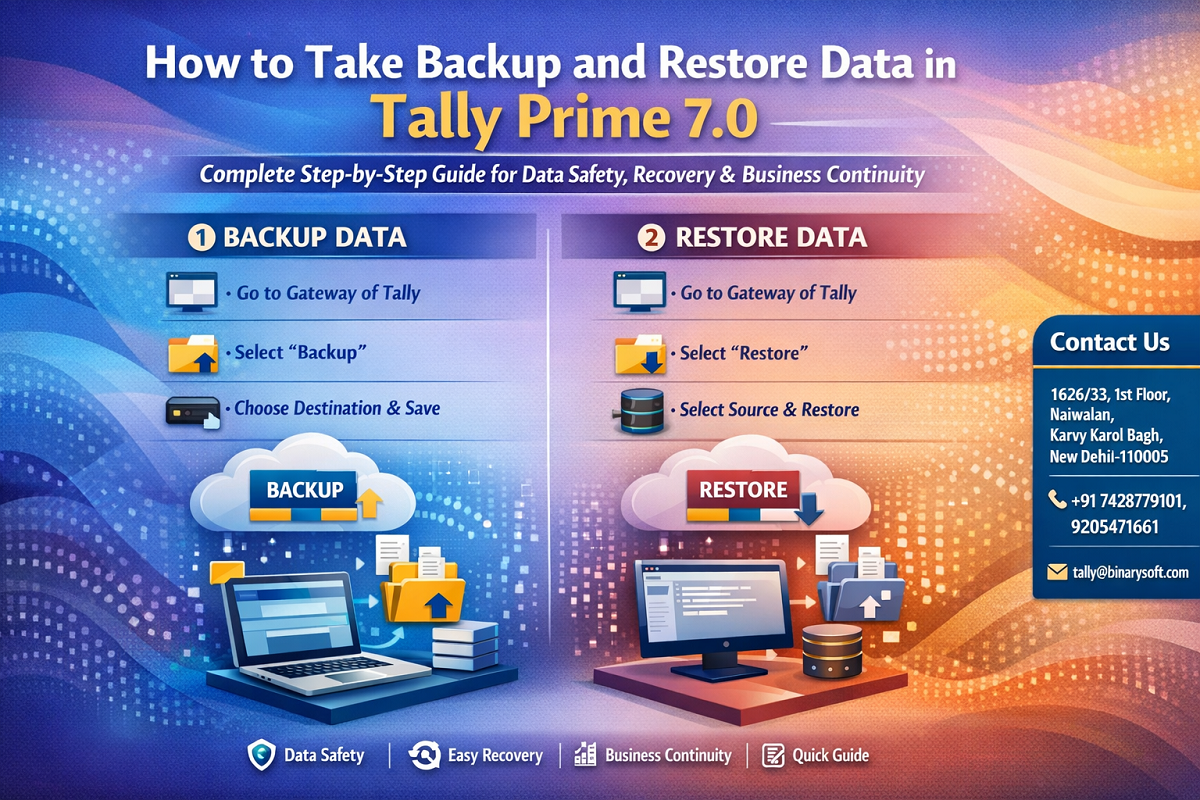
Businesses are facing a new level of risk when it comes to accounting data. With increasing cyber threats, system crashes, GST compliance pressure, and real-time reporting requirements, losing your Tally data is no longer just an inconvenience—it can completely disrupt your business operations. Many companies have already experienced sudden data loss due to hardware failure or accidental deletion, forcing them to restart months of work. The biggest change now is the need for regular, automated, and secure backups to ensure zero data loss and uninterrupted business continuity. If you are using Tally Prime, understanding how to properly take backup and restore data is no longer optional—it is a critical business safeguard that can save you time, money, and stress.
A Real Story: One Mistake That Cost a Business Everything
Rajesh, a small trader in Karol Bagh, was running his entire business on Tally. One day, his computer crashed due to a power issue. He assumed everything would be fine, but when he restarted, all his accounting data was gone. No backup. No recovery.
For the next 10 days, he struggled to rebuild invoices, GST records, and customer balances. Some data was lost forever. Payments got delayed. Clients lost trust.
That incident changed his approach. Today, he takes daily backups and stores them both offline and in the cloud. His business is now safer and more confident.
This story is not unique. It is happening across thousands of businesses—and the solution is simple: proper backup and restore practices in Tally Prime.
What is Backup in Tally Prime?
Backup in Tally Prime means creating a secure copy of your company data so that it can be restored in case of:
- System crash
- Virus or ransomware attack
- Accidental data deletion
- Hard disk failure
- Software corruption
Why Backup is Important in 2026
- Increasing GST compliance and audit requirements
- Digital accounting dependency
- Rising cyber threats and ransomware attacks
- Need for business continuity and zero downtime
- Multi-user data risk in growing businesses
Types of Backup in Tally Prime
1. Manual Backup
User manually takes backup and stores it on external drive or folder.
2. Scheduled Backup (Recommended)
Using tools or scripts to automatically take backups daily.
3. Cloud Backup
Backup stored on Google Drive, OneDrive, or secure servers.
How to Take Backup in Tally Prime – Step-by-Step
Step 1: Open Tally Prime
Launch Tally Prime and go to the Gateway of Tally.
Step 2: Select Backup Option
- Press Alt + Y (Data)
- Click on Backup
Step 3: Choose Source
- Select the company or companies you want to backup
Step 4: Set Destination Path
- Choose where you want to save the backup
Example:
- D:\Tally Backup
- External Hard Disk
- Cloud Sync Folder
Step 5: Start Backup
- Press Enter and confirm
- Backup will be created successfully
Best Practices While Taking Backup
- Always take backup daily
- Keep at least 2 copies (local + cloud)
- Use external storage device
- Do not overwrite previous backups
- Maintain date-wise backup folders
How to Restore Data in Tally Prime – Step-by-Step
Step 1: Open Tally Prime
Go to Gateway of Tally.
Step 2: Select Restore Option
- Press Alt + Y (Data)
- Click on Restore
Step 3: Select Source Path
- Choose the folder where backup is stored
Step 4: Select Destination
- Choose where data will be restored
Step 5: Restore Data
- Confirm and press Enter
- Data will be restored successfully
Important Points While Restoring
- Ensure correct folder selection
- Do not overwrite existing data without verification
- Always test restored data
- Maintain backup version history
Common Mistakes to Avoid
- Not taking regular backups
- Saving backup in same system only
- Overwriting old backup files
- Ignoring backup verification
- Not training staff for backup process
Advanced Tips for Business Safety
- Use automatic backup tools
- Maintain weekly and monthly backup archives
- Use password-protected storage
- Store backup in different physical location
- Integrate cloud storage for extra safety
Contact Details
Powered by Binarysoft Technologies – Authorized Tally Partner
1626/33, 1st Floor, Naiwalan, Karol Bagh,
New Delhi – 110005, INDIA
Contact Us:
+91 7428779101
+91 9205471661
Email:
tally@binarysoft.com
Working Hours:
10:00 AM – 6:00 PM (Mon–Fri)
Conclusion
In today’s digital business environment, your accounting data is your most valuable asset. A simple mistake or system failure can cause massive losses if backups are not maintained properly. Tally Prime provides a simple yet powerful way to secure your data—but it is your responsibility to use it regularly.
By following the step-by-step backup and restore process, you can ensure complete data safety, quick recovery, and uninterrupted business operations. Don’t wait for a crisis to act. Start taking backups today and protect your business future.
Frequently Asked Questions
What is backup in Tally Prime?
Backup in Tally Prime is the process of creating a secure copy of your company data so it can be recovered in case of data loss, system crash, or corruption.
Why is taking backup important for businesses?
Backup ensures that your financial data is safe from accidental deletion, hardware failure, cyber attacks, or software issues. It helps maintain business continuity without interruption.
CA. Harshit Gaurwaadi is a practicing Chartered Accountant with hands-on experience in accounting systems, GST compliance, and MSME advisory. He regularly works with small and mid-sized businesses to streamline inventory, billing, and statutory processes using modern accounting software. His articles focus on practical, ground-level challenges faced by Indian traders and professionals.