Call CA Tally HelpDesk
+91 9205471661,
7428779101
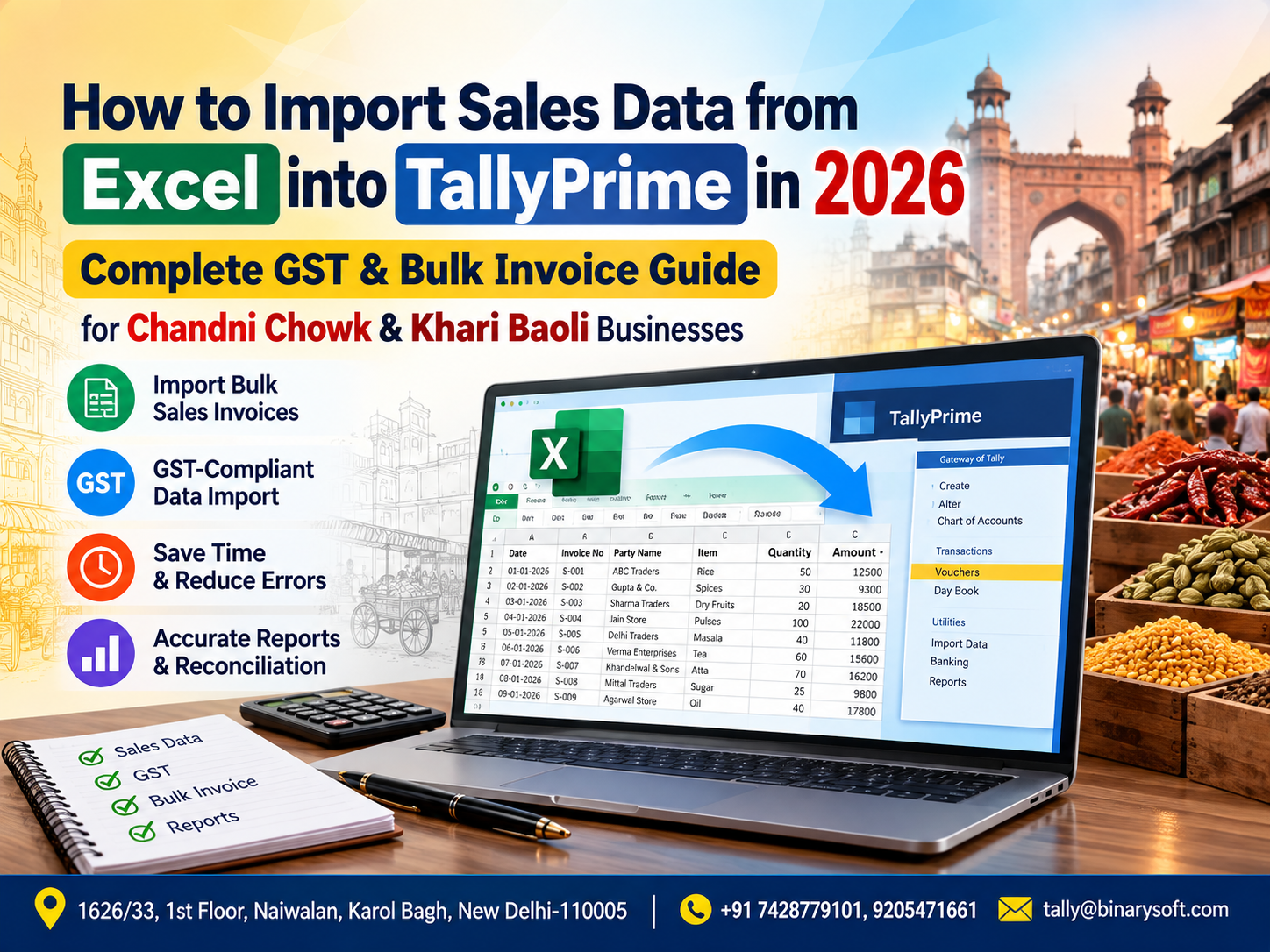
What Changed in 2026? Businesses Can No Longer Afford Hours of Repetitive Sales Entry
In 2026, businesses handling hundreds or thousands of sales transactions are under growing pressure to keep accounting records accurate, GST-ready, and available quickly for reconciliation and reporting. For traders in Chandni Chowk and Khari Baoli, where a busy day can generate a large volume of invoices, manually re-entering Excel sales data into TallyPrime can become a serious operational bottleneck. One wrong GSTIN, tax rate, ledger, invoice number, or stock item can create additional work during reconciliation. The practical solution is to convert structured Excel sales data into properly mapped TallyPrime transactions through a controlled import process. With the right Excel format, ledger mapping, GST configuration, validation rules, and backup procedure, businesses can process bulk sales invoices faster while reducing repetitive data entry. The real benefit is not merely speed—it is giving accounts teams more time to review exceptions, reconcile records, manage receivables, and focus on financial accuracy.
Excel to TallyPrime Sales Import: Why It Matters for Delhi's Busy Trading Markets
Walk through Chandni Chowk or Khari Baoli during business hours and one thing becomes immediately clear: transaction volume can be enormous.
Wholesalers, distributors, retailers, importers, commission agents, food traders, spice merchants, dry-fruit businesses, textile sellers, electrical traders, and many other businesses may process numerous transactions every day.
Sales information may originate from different sources.
Some businesses generate sales invoices through separate billing software.
Others receive order data from branches.
Some maintain sales records in Excel.
Some receive spreadsheets from sales teams.
Others export transaction data from an ERP, POS, e-commerce platform, or custom business application.
The problem begins when this information must ultimately be recorded in TallyPrime.
If employees manually enter every transaction again, the business is effectively performing the same job twice.
This is where Excel-to-TallyPrime import automation can make a significant difference.
A Chandni Chowk Trader's Month-End Problem
Imagine a wholesale business operating near Chandni Chowk.
For years, the company had maintained a familiar routine.
The sales team prepared daily billing information, while the accounts department entered final transactions into TallyPrime.
When business volumes were smaller, the process seemed manageable.
Then the company expanded.
The number of customers increased.
Daily invoices increased.
Stock items increased.
Interstate orders increased.
And the Excel file that once contained a few dozen sales records began containing hundreds.
One evening, close to a GST reconciliation deadline, the accountant was still sitting in the office.
There were hundreds of rows left to enter.
The owner asked:
"How much is pending?"
The accountant looked at the spreadsheet and replied:
"The sales are complete. Only the accounting entry is pending."
That sentence captured the real problem.
The business had already generated the data once.
Why was someone manually recreating it?
A few days later, they started reorganising their Excel data into a structured import format.
Customer names were standardised.
GSTINs were reviewed.
Stock items were mapped.
Tax rates were checked.
Invoice numbers and dates were validated.
Instead of spending hours typing transaction after transaction, the accounts team could focus increasingly on reviewing exceptions and checking the final accounting result.
For the accountant, the biggest benefit was not simply saving keystrokes.
It was leaving the office knowing that the next large spreadsheet did not automatically mean another night of repetitive data entry.
What Does Excel to TallyPrime Import Mean?
Excel to TallyPrime import refers to transferring structured accounting or transaction information maintained in Microsoft Excel into TallyPrime through a suitable import mechanism, configuration, or customised integration.
The objective is to avoid manually entering every voucher.
A properly designed workflow may look like this:
Excel Sales Data
→ Data Validation
→ Ledger and Item Mapping
→ GST Mapping
→ Import Preparation
→ TallyPrime
→ Verification
→ Reconciliation
The important phrase here is "properly designed."
Importing data is not simply about copying rows from Excel into accounting software.
The source data must correspond correctly with the accounting structure used in TallyPrime.
What Sales Data Can Be Prepared for Import?
Depending on the business requirements and technical implementation, an Excel sales file may contain fields such as:
Invoice Number
Invoice Date
Customer Name
Customer GSTIN
Place of Supply
State
Stock Item
Quantity
Unit
Rate
Taxable Value
Discount
HSN/SAC
GST Rate
CGST
SGST
IGST
Cess, where applicable
Round Off
Invoice Total
Narration
Reference Number
The actual format will depend on how the business maintains its books.
A wholesaler using inventory may require item-level information.
A service company may need ledger-based sales entries.
A retailer may need invoice-wise summary information.
A distributor may need multiple stock items within a single invoice.
There should therefore be no assumption that one universal Excel format is ideal for every company.
Why Bulk Sales Entry Becomes Difficult Manually
Suppose a business generates 1,500 sales invoices every month.
If entering and checking one transaction manually takes an average of three minutes, that represents:
1,500 × 3 minutes = 4,500 minutes.
That equals approximately 75 hours.
And this does not include time spent identifying errors, checking GST details, reconciling totals, correcting ledgers, or verifying stock quantities.
Even if an experienced operator enters vouchers faster, repetitive data entry remains a substantial workload.
Bulk import can shift employee time from data entry toward data validation.
That is a more valuable use of accounting resources.
Step-by-Step Guide: How to Import Sales Data from Excel into TallyPrime
The exact import method depends on the TallyPrime environment and the format or integration being used. However, the following workflow represents a practical approach.
Step 1: Take a Backup Before Import
This should be the first step.
Before performing a large import into live accounting data, maintain an appropriate backup of the relevant TallyPrime company.
Never treat bulk import as an experiment on the only copy of important accounting data.
A controlled process should provide a way to return to a known state if the source data, mapping, or import configuration produces an unexpected result.
For first-time implementations, testing with a smaller dataset before processing the complete file is particularly important.
Step 2: Clean the Excel Sales Data
The quality of the imported accounting data depends heavily on the quality of the source spreadsheet.
Remove unnecessary blank rows.
Check invoice numbers.
Check dates.
Review customer names.
Validate GSTIN information where required.
Standardise state names.
Review HSN/SAC information.
Confirm tax rates.
Check quantities and rates.
Review invoice totals.
Identify duplicate transactions.
Remove unwanted formulas or inconsistent formatting if the import process requires plain values.
Data cleaning is one of the most important stages of the entire exercise.
Step 3: Standardise the Excel Columns
A consistent Excel structure makes automation easier.
For example:
| Invoice No. | Date | Customer | GSTIN | Item | Qty | Rate | GST % | Taxable Value | CGST | SGST | IGST | Total |
|---|
| CC-1001 |
01-09-2026 |
ABC Traders |
Customer GSTIN |
Item A |
10 |
500 |
18 |
5,000 |
450 |
450 |
0 |
5,900 |
| CC-1002 |
01-09-2026 |
XYZ Enterprises |
Customer GSTIN |
Item B |
20 |
250 |
18 |
5,000 |
0 |
0 |
900 |
5,900 |
This is only an illustrative structure.
The actual Excel template should be created according to the company's accounting configuration and import requirements.
Step 4: Match Customer Names with TallyPrime Ledgers
This is where many imports can encounter problems.
Suppose Excel contains:
Sharma Trading Co.
But TallyPrime contains:
Sharma Trading Company
A strict mapping process may treat these as different values.
Similar problems occur with names such as:
ABC Traders
ABC Trader
A.B.C. Traders
ABC Traders Delhi
From a human perspective, they may refer to the same customer.
From a software perspective, they may be separate strings.
A master-mapping table can solve this problem.
Example
Excel Customer Name: ABC Traders Delhi
TallyPrime Ledger: ABC Traders
Excel Customer Name: Khari Baoli Foods Pvt Ltd
TallyPrime Ledger: Khari Baoli Foods Private Limited
Standardising master names before import reduces errors and duplicate ledger creation.
Step 5: Match Stock Items
Inventory-based businesses need to pay special attention to stock-item mapping.
An Excel sheet may contain:
Premium Jeera 1KG
while TallyPrime contains:
Jeera Premium 1 Kg
Again, these names may represent the same product but will not necessarily match automatically.
A product-mapping system can connect source product names with the corresponding TallyPrime stock items.
This becomes especially important for businesses with hundreds or thousands of SKUs.
Step 6: Check Units of Measurement
Quantity-based sales transactions require correct units.
Common examples may include:
Nos
Kg
Gm
Box
Pkt
Bag
Carton
Ltr
Mtr
Khari Baoli businesses, for example, may deal with commodities sold in kilograms, bags, packets, boxes, or other packaging units.
If the source spreadsheet and accounting masters use different units, appropriate mapping or conversion may be required.
Step 7: Validate GSTIN
For GST-related B2B transactions, customer GST information should be reviewed carefully.
An incorrect GSTIN can create downstream compliance and reconciliation problems.
Do not rely on the import process to magically correct poor source information.
The workflow should identify missing or improperly formatted information before transactions are posted.
Step 8: Determine Intra-State or Inter-State Sales
GST treatment depends on the nature and place of supply of the transaction.
For a Delhi business, a qualifying intra-state transaction would generally involve CGST and SGST, while a qualifying inter-state supply would generally involve IGST.
The applicable GST treatment must be determined according to the actual transaction and prevailing GST rules.
The import system should not blindly assign tax ledgers without considering the relevant transaction information.
Step 9: Map GST Rates Correctly
Different items can attract different GST rates.
Depending on the goods or services involved and the applicable rules, transactions may contain different rates or tax treatments.
The spreadsheet should therefore clearly identify the tax information required by the business's import logic.
Incorrect GST-rate mapping can produce inaccurate tax values even when the invoice total initially appears reasonable.
Step 10: Check HSN/SAC Information
HSN/SAC classification may be relevant for GST reporting and invoice preparation depending on the transaction and applicable requirements.
Businesses should ensure that product and service masters contain the correct classification information applicable to their circumstances.
For companies importing item-wise sales data, it is generally preferable to maintain consistent HSN/SAC information through properly configured masters rather than repeatedly correcting it manually.
Step 11: Handle Multiple Items in One Invoice
This is a critical requirement for wholesale businesses.
Consider Invoice CC-1050 containing:
Item A – 10 units
Item B – 5 units
Item C – 20 units
Excel may contain three rows, but TallyPrime needs to recognise them as components of the same sales transaction.
The import logic therefore needs a reliable grouping key.
Invoice number is commonly part of this logic, although additional fields may be required depending on the source data.
The system should understand where one invoice begins and where the next one starts.
Step 12: Map Sales Ledgers
Businesses may maintain multiple sales ledgers.
For example:
Local Sales
Interstate Sales
Wholesale Sales
Retail Sales
Export Sales
Taxable Sales
Exempt Sales
The exact structure varies by company.
The import configuration should map each transaction to the appropriate ledger based on defined business rules.
Step 13: Manage Discounts and Other Charges
Wholesale invoices frequently contain adjustments such as:
Trade discount
Cash discount
Freight
Packing charges
Delivery charges
Round off
Other invoice-level adjustments
These should not simply be ignored during bulk import.
The Excel format should contain the information necessary to reproduce the required accounting treatment.
Step 14: Validate Invoice Totals
Before import, compare the components of the transaction.
A simplified validation might examine whether:
Taxable Value
If totals do not match, the transaction should ideally be flagged for review rather than silently imported.
Step 15: Identify Duplicate Invoice Numbers
Duplicate transactions are a major risk in bulk processing.
Imagine importing September sales successfully and then accidentally processing the same Excel file again.
Without appropriate checks, duplicate accounting entries could be created depending on the import method and configuration.
A robust workflow should therefore consider invoice number, date, customer, source reference, and other relevant identifiers when checking for duplicates.
Step 16: Test with a Small Batch
Do not begin a new integration by importing thousands of transactions.
Start with a controlled sample.
For example:
5 invoices
10 invoices
20 invoices
Then verify them thoroughly.
Check customer ledger.
Check voucher type.
Check invoice date.
Check GST.
Check stock quantity.
Check invoice value.
Check narration.
Check outstanding references where relevant.
Once the test results are satisfactory, larger batches can be processed.
Step 17: Import the Data into TallyPrime
After validation and mapping, the prepared information can be transferred through the supported or customised import workflow being used by the organisation.
The precise technical mechanism depends on the implementation.
Businesses should ensure that the method is compatible with their TallyPrime environment and does not bypass essential accounting controls.
Step 18: Review the Import Result
Successful processing does not mean the work is finished.
Review the resulting transactions.
Compare:
Number of source invoices vs. imported vouchers
Source taxable value vs. imported taxable value
Source GST vs. imported GST
Source invoice total vs. imported invoice total
Customer-wise totals
Date-wise totals
Item quantities
This is one of the most important controls in bulk accounting automation.
Step 19: Reconcile GST Information
After importing GST-related sales transactions, review the resulting accounting and GST information carefully.
The objective should be to identify issues before downstream reporting or return preparation.
Potential issues may include:
Incorrect GSTIN
Wrong state
Incorrect tax rate
CGST/SGST instead of IGST
IGST instead of CGST/SGST
Wrong taxable value
Incorrect HSN/SAC mapping
Duplicate invoice
Missing invoice
Automation makes processing faster, but reconciliation remains essential.
Excel to TallyPrime for Chandni Chowk Businesses
Chandni Chowk contains a diverse range of businesses with different accounting requirements.
Wholesale and trading businesses may process large numbers of invoices containing many stock items.
In these environments, Excel import can be particularly useful when transaction data already exists digitally.
For example, sales information may come from:
Custom billing software
Sales team spreadsheets
Branch reports
POS systems
Online order systems
ERP exports
Dealer order files
Custom applications
Instead of manually recreating these transactions, businesses can build a structured bridge between the source data and TallyPrime.
Excel to TallyPrime for Khari Baoli Businesses
Khari Baoli's trading environment creates its own accounting challenges.
Businesses dealing in spices, dry fruits, grains, herbs, food products, commodities, and related categories may handle substantial item-level data.
Invoices can include multiple products, quantities, units, rates, discounts, GST treatment, and customer-specific pricing.
For such businesses, an Excel import workflow can help process large transaction datasets while preserving the necessary accounting structure.
However, accurate inventory and unit mapping becomes particularly important.
Import Thousands of Sales Invoices
The real advantage of automation becomes visible at scale.
Entering five invoices manually may be easy.
Entering 50 is repetitive.
Entering 500 consumes significant time.
Entering 5,000 becomes an operational project.
A bulk import workflow allows businesses to process large datasets systematically.
The focus shifts from:
"Who will type all these vouchers?"
to:
"Is the source data correct and ready to process?"
That is an important transformation.
Excel to TallyPrime Import for GST Invoices
GST adds another layer of complexity to sales-data import.
A normal sales transaction may require:
Customer ledger
GSTIN
Place of supply
Taxable value
HSN/SAC
GST rate
Tax ledgers
Invoice number
Invoice date
Item information
The import process should preserve the information needed by the company's accounting and compliance workflow.
Incorrect tax mapping can create additional reconciliation work later.
For that reason, GST imports should be tested and reviewed carefully.
B2B Sales Invoice Import
B2B transactions generally require greater attention to customer master information.
Customer GSTIN, state, invoice number, invoice date, taxable value, and tax treatment may all be important.
A validation process should ideally flag transactions where required information is missing.
For example:
GSTIN missing
State missing
Invoice number blank
GST rate unavailable
Customer ledger unmapped
It is usually better to stop and review a questionable transaction than to import incorrect accounting data simply to achieve a higher processing count.
B2C Sales Import
B2C data may have a different structure from B2B transactions.
Businesses should define separate mapping logic where required rather than assuming all sales transactions can be treated identically.
The source Excel format should clearly distinguish the relevant transaction category if that information affects accounting or GST treatment.
Credit Notes and Sales Returns
A complete sales-data workflow may also need to handle:
Sales returns
Credit notes
Rate differences
Quantity adjustments
Customer claims
These should be designed carefully because they affect customer balances, sales values, tax information, and potentially inventory.
Businesses should not simply convert negative spreadsheet values into accounting transactions without first defining the appropriate accounting treatment.
Inventory Impact of Bulk Sales Import
When sales vouchers affect inventory, bulk import also affects stock records.
That means errors can affect more than accounting.
Incorrect quantities can distort:
Closing stock
Item balances
Warehouse reports
Stock valuation
Reorder decisions
Gross profit analysis
For inventory-based businesses, post-import stock verification should therefore be part of the process.
Excel Sales Import for Multiple Godowns
Some Chandni Chowk and Khari Baoli businesses maintain inventory at multiple locations.
If the accounting configuration uses godowns or locations, the source data may need to identify the relevant inventory location.
For example:
Main Godown
Shop Stock
Warehouse 1
Warehouse 2
A customised import can map source location information according to the company's TallyPrime configuration.
Common Excel-to-TallyPrime Import Mistakes
Businesses should watch for several recurring problems.
Duplicate invoice numbers can lead to incorrect transaction history.
Different customer spellings can break ledger mapping.
Incorrect date formats can result in wrong voucher dates.
Missing stock items can stop or distort inventory imports.
Incorrect units can affect quantity reporting.
Wrong GST rates can produce tax discrepancies.
Poor state mapping can affect tax treatment.
Blank mandatory fields can cause incomplete transactions.
Repeated import of the same source file can create duplicates.
Incorrect invoice grouping can split one multi-item invoice into several transactions.
Most of these problems can be reduced through validation before import.
Why Direct Copy-Paste Is Not Enough
Businesses sometimes assume Excel-to-TallyPrime automation simply means copying and pasting spreadsheet rows.
It is more complicated than that.
Excel is primarily a flexible spreadsheet environment.
TallyPrime is an accounting and business management system with structured masters, vouchers, inventory information, tax configuration, and accounting relationships.
A row containing:
Customer | Item | Qty | Rate | GST
must ultimately be interpreted according to the company's accounting configuration.
The import layer acts as the bridge between raw spreadsheet information and structured accounting data.
Create a Standard Excel Template
Businesses that regularly import data should avoid receiving a completely different spreadsheet every month.
A standard template can dramatically improve consistency.
Define fixed columns.
Define required fields.
Define accepted date formats.
Define customer naming conventions.
Define item naming conventions.
Define GST fields.
Define numeric formats.
Define invoice grouping rules.
Define which fields are optional.
Once the template becomes part of the operational process, data quality can improve before the file even reaches the accounts department.
Add Pre-Import Validation
A professional workflow should validate the Excel file before posting transactions.
For example, the system can identify:
Missing invoice number
Missing invoice date
Unknown customer
Unknown stock item
Invalid quantity
Missing GST rate
Unmapped ledger
Duplicate source transaction
Tax calculation mismatch
The user can correct these records and process the file again.
This is much safer than importing everything and searching for problems afterward.
Maintain an Error Report
When 1,000 records are processed and 15 contain problems, employees should not have to manually inspect all 1,000.
An error report can identify only the exceptions.
For example:
Row 56 – Customer ledger not mapped
Row 119 – Stock item not found
Row 304 – GST rate missing
Row 407 – Duplicate invoice number
Row 811 – Invoice total mismatch
The accounts employee can focus directly on those records.
This is one of the biggest productivity advantages of a well-designed import system.
Maintain an Import Summary
After processing, the system can provide a summary such as:
Total invoices received: 1,000
Successfully processed: 982
Requires review: 18
Total taxable value: Source vs. Processed
Total GST: Source vs. Processed
Total invoice value: Source vs. Processed
These controls help employees verify that the bulk operation produced the expected result.
Excel to TallyPrime Import vs Manual Entry
| Area | Manual Entry | Structured Bulk Import |
|---|
| High-volume processing |
Time-consuming |
Designed for batch processing |
| Repetitive typing |
High |
Reduced |
| Human typing errors |
More opportunities |
Can be reduced with validation |
| Master mapping |
Manual |
Can be predefined |
| GST validation |
Depends heavily on operator |
Rules can identify exceptions |
| Duplicate checks |
Manual |
Can be incorporated |
| Error reporting |
Often scattered |
Can be centralised |
| Scalability |
Limited by manpower |
Better suited to high volume |
| Reconciliation |
Required |
Still required |
| Initial setup |
Low |
Requires mapping and testing |
Automation does not remove the need for accounting knowledge.
It changes where that knowledge is applied.
Instead of spending most of the day typing transactions, employees can spend more time checking whether the transactions are correct.
Benefits of Excel-to-TallyPrime Sales Import
The potential benefits include faster bulk processing, reduced repetitive data entry, consistent transaction mapping, improved handling of large datasets, structured error identification, easier reconciliation, better utilisation of accounting staff, and more scalable operations.
The size of the benefit depends on transaction volume and source-data quality.
A business importing 20 transactions per month may see limited advantage.
A business processing several thousand transactions may see a substantial operational difference.
Who Should Consider Excel-to-TallyPrime Automation?
This type of solution can be particularly relevant for:
Wholesalers
Distributors
Manufacturers
Retail chains
Importers
Exporters
E-commerce sellers
Multi-branch companies
High-volume traders
Businesses using external billing software
Companies receiving sales data from multiple systems
The strongest use case occurs when transaction information already exists digitally but employees are manually entering it again into TallyPrime.
Can Excel Import Save Accounting Costs?
The objective should not simply be reducing headcount.
A better objective is increasing the productivity of the existing accounts team.
If experienced accounting staff spend hours typing information that already exists in Excel, the business is not making the best use of their skills.
Automation can allow them to spend more time on:
GST reconciliation
Receivables
Bank reconciliation
Outstanding analysis
Stock verification
Management reporting
Exception checking
Financial controls
That can provide greater business value than repetitive voucher entry.
Security and Data Control
Excel files can contain commercially sensitive information.
Businesses should control:
Who can prepare source files
Who can modify them
Who can initiate imports
Who can approve imported data
Where files are stored
How backups are maintained
How errors are logged
For larger businesses, maker-checker controls can also be considered.
One employee prepares the file.
Another verifies it.
An authorised user processes or approves the final accounting result.
Why Businesses Need Custom Mapping
Two businesses can both use TallyPrime but maintain completely different accounting structures.
Business A may use one Sales ledger.
Business B may use separate local and interstate sales ledgers.
Business C may divide sales by product category.
Business D may require godown-wise inventory.
Business E may use cost centres.
Therefore, a reliable Excel-to-TallyPrime solution should be based on the actual accounting structure rather than assumptions.
Binarysoft Technologies – Excel to TallyPrime Automation
Binarysoft Technologies can assist businesses with TallyPrime-related customisation and automation requirements, including workflows involving structured Excel data and accounting processes.
A typical implementation assessment may review:
Existing Excel format
TallyPrime company configuration
Sales voucher structure
Ledger masters
Stock-item masters
GST requirements
Invoice numbering
Units
Godowns
Cost centres, where applicable
Error handling
Validation requirements
Reporting requirements
The objective should be to develop a workflow suited to the organisation's actual transaction process.
From Manual Entry to Smart Accounting Workflow
The traditional process looks like:
Sales Generated
→ Excel Prepared
→ Accountant Opens Excel
→ Accountant Opens TallyPrime
→ Transaction Typed Again
→ Voucher Checked
→ Next Transaction
A more automated process can look like:
Sales Generated
→ Standard Excel File
→ Automated Validation
→ Mapping
→ Bulk Processing
→ Error Report
→ Reconciliation
→ Final Review
The difference is significant.
The first process uses people primarily for data entry.
The second uses people primarily for validation and financial control.
That is where accounting automation creates practical value.
Conclusion
For businesses in Chandni Chowk and Khari Baoli dealing with growing sales volumes, manually entering every Excel transaction into TallyPrime can become increasingly inefficient.
A structured Excel-to-TallyPrime sales import workflow can help businesses process bulk invoices while maintaining proper attention to customer ledgers, stock items, quantities, GST information, invoice numbers, tax treatment, and accounting values.
However, successful automation depends on disciplined source data.
The best workflow is not simply "import everything."
It is:
Prepare
→ Validate
→ Map
→ Test
→ Import
→ Review
→ Reconcile.
Businesses should maintain backups, test new configurations using small batches, validate GST and accounting information, check duplicate transactions, and reconcile imported results before relying on bulk processing for regular operations.
For high-volume traders, wholesalers, distributors, manufacturers, and other businesses where sales information already exists in Excel, the opportunity is straightforward: stop spending valuable accounting time retyping data that already exists digitally and build a controlled process for turning that data into usable accounting transactions.
Powered by Binarysoft Technologies
Authorized Tally Partner
Location: 1626/33, 1st Floor, Naiwalan, Karol Bagh, New Delhi – 110005, INDIA
Contact us: +91 7428779101, 9205471661
Email us: tally@binarysoft.com
Business Hours: 10:00 AM – 6:00 PM, Mon–Fri
Frequently Asked Questions
Can sales data from Excel be imported into TallyPrime?
Yes. Depending on the TallyPrime environment, source format, and business requirements, structured sales data can be transferred using appropriate supported import capabilities or a customised integration. The Excel columns and TallyPrime masters need to be mapped correctly.
Can I import thousands of sales invoices at once?
Bulk processing is possible with a properly designed workflow. For a new implementation, however, it is safer to test a small batch first and verify the accounting, inventory, and GST results before processing larger datasets.
CA. Lakshy Vermaa advises small and mid-sized businesses on accounting discipline, tax compliance, and process improvement. With exposure to retail and trading environments, he writes practical articles aimed at helping business owners gain better financial visibility and control.