Call CA Tally HelpDesk
+91 9205471661,
7428779101
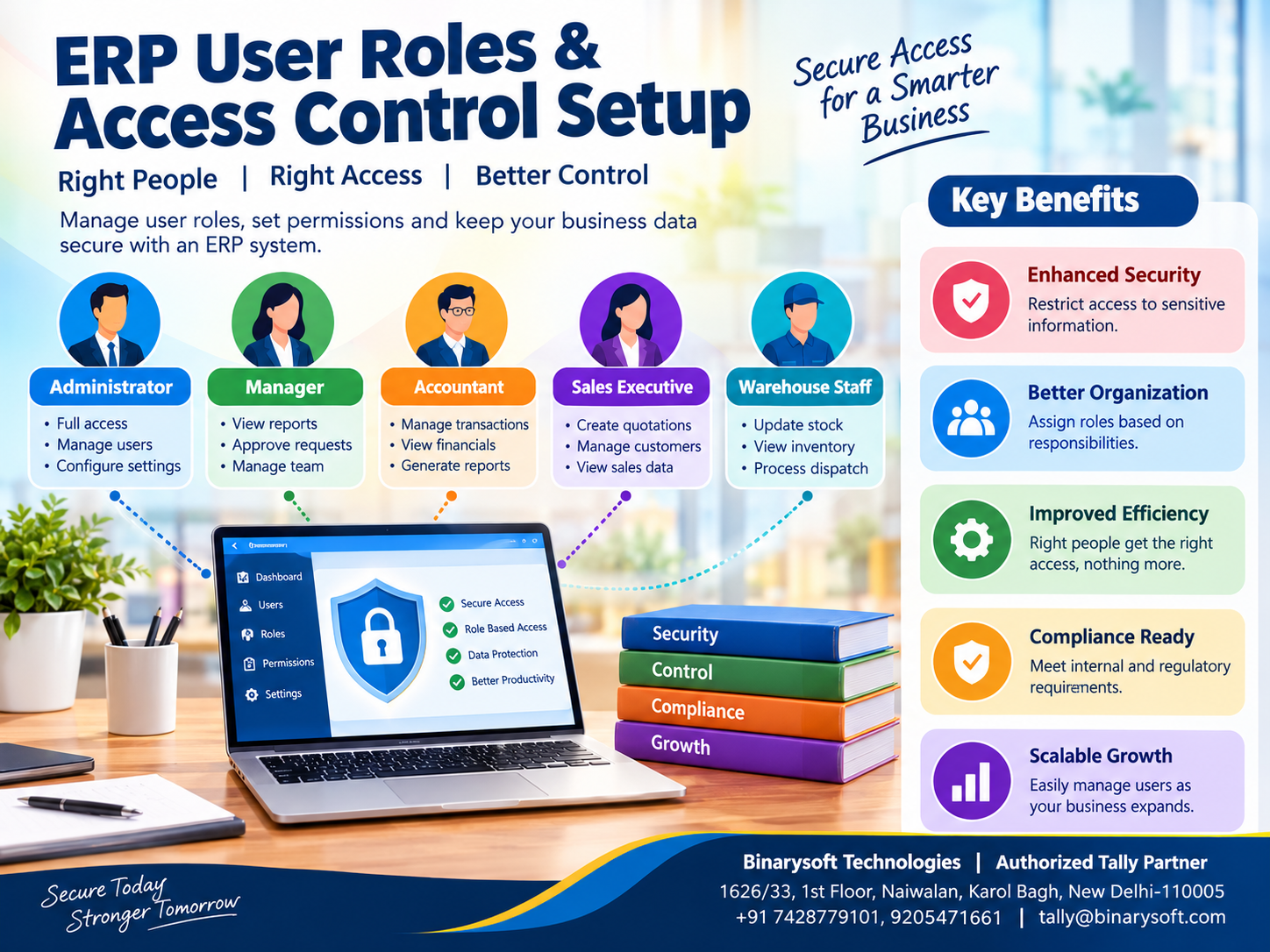
ERP User Roles and Access Control Setup: How to Manage Employee Permissions and Protect Business Data in 2026
SEO Title: ERP User Roles and Access Control Setup 2026 – Manage Permissions, Security and Tally Prime Users
Meta Description: Learn how to configure ERP user roles and access control to protect financial data, manage employee permissions and improve business security. Explore Tally Prime user management features.
Focus Keyword: ERP User Roles and Access Control Setup
Secondary Keywords: ERP User Management, Role-Based Access Control, ERP Security, Tally Prime User Permissions, ERP Access Management, Accounting Software Security, User Roles in ERP, Data Security for Businesses, ERP Authorization.
Suggested URL Slug: erp-user-roles-access-control-setup
Article Category: ERP Software | Business Security | Tally Prime | Accounting Software
Introduction: Why ERP User Roles and Access Control Matter
As businesses grow, more employees need access to accounting software, inventory records, customer information and financial reports.
An accountant may need to record payments and prepare financial statements. A sales employee may require access to customer invoices, while a warehouse manager needs inventory information.
However, giving every employee unrestricted access to the entire business management system can create serious security risks.
Employees may accidentally modify important records, view confidential financial information or perform transactions outside their responsibilities.
This is why ERP user roles and access control are essential for modern business management.
Role-based access control allows organizations to assign permissions according to employee responsibilities.
Instead of providing identical access to everyone, businesses can define which users are authorized to view, create, modify or perform specific activities.
For Indian small and medium businesses, Tally Prime provides user management and security capabilities that can help protect accounting information and support controlled access.
This guide explains how ERP access control works, how to configure user permissions and how businesses can strengthen financial data security.
A Business Owner's Story: One Incorrect Entry That Created a Financial Crisis
Amit operated a growing wholesale electrical goods business in Delhi.
His company supplied products to retailers across Karol Bagh, Sadar Bazar and nearby commercial markets.
As his business expanded, Amit employed additional staff for accounting, billing, inventory management and customer service.
Initially, every employee used the same accounting software login.
Amit believed this arrangement would make daily operations easier.
One afternoon, an employee accidentally modified an important customer ledger while attempting to correct a sales transaction.
The change affected the customer's outstanding balance.
A few days later, the accounting team discovered differences between the expected receivables and the recorded amounts.
Employees struggled to identify who had made the modification.
The incident created confusion and delayed customer payment reconciliation.
Amit realized that sharing a single login was exposing his business to unnecessary risks.
He decided to introduce individual user accounts and role-based permissions.
The accounting team received access appropriate to financial transactions, sales employees received relevant billing permissions, and warehouse staff were restricted to their authorized inventory activities.
Management also introduced periodic reviews of user access.
Over time, the company established clearer accountability and stronger internal controls.
The lesson was simple: protecting business data is not only about preventing external attacks. It is also about ensuring that employees have access only to the information and functions required for their work.
1. What Are ERP User Roles?
ERP user roles define the responsibilities and permissions assigned to individuals using enterprise resource planning software.
A role represents a group of activities that an employee is authorized to perform.
For example, an accountant may require access to financial transactions, while a warehouse employee may need inventory-related permissions.
Instead of configuring every permission separately for each employee, organizations can create roles based on job responsibilities.
Common ERP User Roles
System Administrator: Manages system configuration, user accounts and security settings.
Finance Manager: Reviews financial transactions, accounting reports and relevant approvals.
Accountant: Records accounting transactions and prepares financial information.
Sales Executive: Handles customer orders, invoices and authorized sales activities.
Purchase Executive: Manages supplier transactions and purchasing records.
Inventory Manager: Reviews stock balances and manages authorized inventory transactions.
Auditor: Examines relevant financial records, usually through restricted or read-only access.
Business Owner: Accesses financial and operational information required for management decisions.
The exact permissions available depend on the ERP application.
2. What Is Role-Based Access Control in ERP?
Role-Based Access Control, commonly known as RBAC, is a security method that assigns system permissions according to predefined user roles.
Rather than granting unrestricted access, businesses define which actions each role can perform.
For example, a sales employee may be permitted to create sales invoices but not modify payroll records.
Similarly, a warehouse employee may need access to stock information without requiring permission to view confidential financial statements.
How RBAC Works
Role-based access control generally follows four stages.
User Identification: Every employee receives an individual account.
Role Assignment: The administrator assigns a suitable role based on job responsibilities.
Permission Configuration: Each role receives access to approved functions.
Access Verification: The system checks permissions when users attempt to perform restricted activities.
This approach helps organizations maintain consistent security policies.
Benefits of Role-Based Access Control
RBAC can reduce unauthorized access, improve accountability and simplify user administration.
It also supports internal controls by separating responsibilities between departments.
3. Why ERP Access Control Is Important for Businesses
Protection of Confidential Financial Information
Accounting software contains sensitive information such as business profitability, customer balances, supplier payments and financial statements.
Restricting access helps protect confidential records.
Prevention of Unauthorized Changes
Employees should not be able to modify transactions outside their responsibilities.
Appropriate permissions reduce the possibility of accidental or unauthorized changes.
Improved Employee Accountability
Individual user accounts help organizations associate activities with authorized employees.
Where supported, audit and activity records can assist with investigating changes.
Better Internal Controls
Separating duties helps reduce the risk of inappropriate transactions.
For example, the person creating a supplier record may not need authority to approve related payments.
Reduced Operational Errors
Restricting unnecessary functions can simplify employee workflows and reduce mistakes.
Support for Business Expansion
As companies hire more employees and open additional branches, structured user management becomes increasingly important.
4. Common Types of ERP Access Permissions
ERP systems may support different permission categories.
| Permission Type | Purpose | Example |
|---|
| View |
Read information |
Review sales reports |
| Create |
Enter new records |
Create sales invoices |
| Modify |
Change existing records |
Correct authorized vouchers |
| Delete |
Remove records |
Delete permitted entries |
| Approve |
Authorize transactions |
Approve purchase requests |
| Export |
Download information |
Export financial reports |
| Configure |
Change system settings |
Modify accounting configuration |
| Administer |
Manage user access |
Create employee accounts |
Not every ERP system supports every permission type independently.
Businesses should verify the available security controls before designing their access policies.
5. How to Set Up ERP User Roles and Access Control
A successful access-control implementation begins with understanding employee responsibilities.
Step 1: Identify All ERP Users
Prepare a list of employees who require software access.
Include their departments, responsibilities and locations.
Avoid creating unnecessary accounts.
Step 2: Define Business Roles
Group employees according to their job functions.
For example, accounting employees may share certain permissions, while warehouse employees require different access.
Step 3: Apply the Principle of Least Privilege
The principle of least privilege means giving users only the permissions necessary to complete their assigned work.
An employee responsible for invoice preparation should not automatically receive access to confidential payroll information.
Step 4: Separate Critical Responsibilities
Where practical, divide important activities between different employees.
For example, one employee may prepare payment information while another verifies and authorizes the transaction.
Step 5: Create Individual User Accounts
Avoid sharing administrator credentials.
Individual accounts improve accountability and simplify permission management.
Step 6: Configure Role Permissions
Assign appropriate access to transactions, reports and administrative functions.
Step 7: Test Access Restrictions
Verify that employees can perform authorized activities but cannot access restricted functions.
Step 8: Train Employees
Explain login procedures, password protection and the importance of protecting business information.
Step 9: Review Permissions Regularly
Update access when employees change departments, receive new responsibilities or leave the organization.
6. How Tally Prime Helps Manage User Roles and Access
Tally Prime provides security and user management features that can help businesses control access to accounting information.
Its capabilities are particularly useful for organizations where multiple employees work with company records.
Company-Level Security
Businesses can configure security controls for company data.
This helps restrict access to authorized users.
User Accounts
Individual user accounts can be created for employees who require access.
This reduces dependence on shared credentials.
Security Levels
Tally Prime supports security levels that can be used to define access permissions for different categories of users.
Businesses can configure appropriate restrictions according to available product functionality.
Administrator Access
Administrative users can manage relevant security settings and user permissions.
Administrator credentials should be restricted to trusted personnel.
Controlled Accounting Access
Organizations can configure permissions to limit access to supported accounting functions and reports.
Multi-User Environments
Businesses using suitable multi-user licensing can configure user access according to their operational requirements.
Important Consideration
Available security controls may vary by product version, edition and configuration.
Businesses should verify supported permissions and test their settings before allowing employees to access live accounting data.
7. Practical Steps to Configure User Security in Tally Prime
The following provides a general implementation approach. Exact menu labels may differ between product versions.
Step 1: Open the Company
Launch Tally Prime and select the company for which security needs to be configured.
Step 2: Enable Security
Open the relevant company configuration or alteration settings.
Enable the available security control options and establish appropriate administrator credentials.
Step 3: Configure Security Levels
Access the user and security management options.
Review existing security levels and create or modify levels according to business requirements.
Step 4: Define Permissions
Configure the activities that users are permitted or restricted from performing.
For example, an employee may require transaction-entry access without administrative privileges.
Step 5: Create User Accounts
Create individual accounts and assign the appropriate security level.
Step 6: Verify Access
Sign in using a test account and confirm that permissions work as expected.
Step 7: Maintain Security
Review user access periodically and update permissions whenever responsibilities change.
Businesses should retain secure administrator access and appropriate backups before making significant configuration changes.
8. Sample ERP User Role and Permission Matrix
A permission matrix helps organizations document access requirements.
The following table illustrates a possible arrangement.
| Business Function | Admin | Accountant | Sales Staff | Inventory Staff | Auditor |
|---|
| Company Configuration |
Full |
No |
No |
No |
No |
| Sales Entry |
Full |
Allowed |
Allowed |
No |
View |
| Purchase Entry |
Full |
Allowed |
No |
Restricted |
View |
| Financial Reports |
Full |
Allowed |
Restricted |
No |
View |
| Inventory Reports |
Full |
Allowed |
View |
Allowed |
View |
| User Management |
Full |
No |
No |
No |
No |
| Accounting Corrections |
Full |
Restricted |
Restricted |
No |
No |
| Security Settings |
Full |
No |
No |
No |
No |
This matrix is an example of a business security policy, not a guarantee that every permission can be configured exactly this way in Tally Prime.
Actual permissions must be mapped to the capabilities of the selected software.
9. Case Study One: Improving Accounting Security in a Wholesale Business
Business: Illustrative electrical goods distributor, Bhagirath Palace, Delhi
Business Challenge
A wholesale distributor employed twelve people across accounting, sales and inventory departments.
Several employees used shared software credentials.
Management experienced difficulties identifying responsibility for incorrect accounting entries.
Solution
The business introduced individual user accounts and defined departmental responsibilities.
Accounting employees received access to relevant financial transactions.
Sales staff were assigned suitable billing permissions.
Warehouse employees were provided access appropriate to inventory-related activities.
Administrative functions remained restricted to designated personnel.
Results
The business established clearer accountability for software usage.
Employees could focus on relevant activities without accessing unnecessary functions.
Management also introduced periodic permission reviews.
Key Learning: Role-based access control helps wholesale businesses protect accounting information and strengthen internal controls.
This is an illustrative case study.
10. Case Study Two: Securing Financial Records in a Manufacturing Company
Business: Illustrative manufacturing unit, Bawana Industrial Area, Delhi
Business Challenge
A manufacturing company maintained accounting, purchasing and inventory information in a shared business system.
Management wanted to reduce the risk of unauthorized financial changes.
Solution
The company reviewed employee responsibilities and prepared an access-control matrix.
Purchasing employees received permissions relevant to supplier transactions.
Inventory staff were assigned appropriate stock-related access.
Financial reporting and administrative functions were restricted to authorized employees.
Management also established procedures for reviewing sensitive transactions.
Results
The company improved separation of responsibilities and reduced unnecessary access to confidential information.
Employees gained clearer guidance about their authorized activities.
Key Learning: Access-control planning is particularly important when several departments share the same business software.
This is an illustrative case study.
11. Common ERP Access Control Mistakes to Avoid
Sharing Login Credentials
Shared accounts make it difficult to establish individual accountability.
Giving Everyone Administrator Access
Unrestricted access increases the possibility of unauthorized or accidental changes.
Ignoring Employee Role Changes
Employees may retain permissions that are no longer required.
Failing to Remove Former Employees
Access should be revoked promptly when employment ends.
Using Weak Passwords
Weak credentials increase the risk of unauthorized access.
Not Reviewing Security Settings
Access requirements change as businesses expand.
Assuming Software Permissions Replace Internal Controls
Technical restrictions should support, not replace, management supervision and transaction verification.
12. ERP Security Best Practices for Indian Businesses
Businesses should establish practical security policies covering user accounts, passwords, data protection and system administration.
Use Strong Authentication
Require strong, unique passwords and enable additional authentication protections where supported.
Restrict Administrative Privileges
Limit administrator access to employees responsible for system management.
Maintain Regular Backups
Create reliable backups and periodically verify that data can be restored.
Protect Remote Access
Businesses using cloud-hosted ERP environments should implement appropriate network and authentication security.
Review User Activity
Where supported, review relevant activity and audit information.
Update Software
Maintain supported software versions and apply relevant security updates.
Establish Employee Exit Procedures
Remove or disable user access when employees leave the organization.
Conduct Periodic Access Reviews
Management should confirm that permissions continue to match employee responsibilities.
13. ERP Access Control for Cloud and On-Premise Systems
Access-control requirements apply to both cloud-hosted and locally installed ERP software.
Cloud-Hosted ERP
Cloud environments may support remote access, centralized administration and additional infrastructure security controls.
However, businesses must manage application-level permissions and verify hosting-provider responsibilities.
On-Premise ERP
On-premise deployments provide direct control over local infrastructure.
Businesses remain responsible for securing servers, networks, workstations and application access.
Choosing the Right Approach
The appropriate deployment depends on operational requirements, IT resources, employee locations and security policies.
Neither model automatically eliminates the need for role-based permissions.
14. How ERP Access Control Supports Business Growth
As businesses expand, more employees require access to operational information.
Without structured permissions, managing security becomes increasingly difficult.
Role-based access control helps organizations introduce new employees, assign responsibilities and maintain consistent internal policies.
It also supports accountability across multiple departments.
For growing businesses using Tally Prime, properly configured security levels and user accounts can help maintain controlled access to accounting information.
Organizations should review permissions whenever they introduce new branches, departments or business processes.
15. Future of ERP User Management and Data Security
ERP security continues to evolve as organizations adopt cloud services and connected applications.
Modern access-management approaches increasingly emphasize stronger authentication, least-privilege permissions, centralized identity management and continuous security monitoring.
Some enterprise platforms also provide advanced access reviews and automated security controls.
However, businesses should not assume that every ERP application includes these capabilities.
For Indian SMEs, basic practices such as individual accounts, restricted permissions, reliable backups and regular access reviews remain essential.
Strong security begins with clear policies and consistent implementation.
Conclusion
ERP user roles and access control are essential for protecting business information and maintaining accountability.
As organizations grow, employees need access to different accounting, inventory and operational functions.
Providing unrestricted access to everyone can create unnecessary security risks.
Role-based access control helps businesses assign permissions according to employee responsibilities.
Tally Prime provides user management and security features that can support controlled access to accounting data.
However, businesses should carefully configure available permissions, verify access restrictions and maintain appropriate internal controls.
Effective ERP security is not about preventing employees from working. It is about giving the right people the right access while protecting the information that keeps the business running.
Powered by Binarysoft Technologies
Authorized Tally Partner
Location: 1626/33, 1st Floor, Naiwalan, Karol Bagh, New Delhi – 110005, INDIA
Contact Us: +91 7428779101, 9205471661
Email: tally@binarysoft.com
Business Hours: 10:00 AM – 6:00 PM, Monday to Friday
Frequently Asked Questions
How often should ERP user permissions be reviewed?
Businesses should review permissions periodically and whenever employees join, leave or change responsibilities.
What is the principle of least privilege?
It means providing employees only the permissions necessary to perform their assigned responsibilities.
Can businesses create different user roles in Tally Prime?
Tally Prime supports security levels and user accounts. Available permission settings depend on the product version and configuration.
What is role-based access control in ERP?
Role-based access control assigns software permissions according to predefined job roles, helping restrict unauthorized activities.
CA. Krishiv Bansode works closely with startups and MSMEs on accounting, taxation, and compliance matters. He regularly writes about cloud accounting, automation, and financial management strategies.